Workflows
Let the next step happen on its own
An automation waits for an event, checks the conditions you set, then acts: it tags the lead, creates a task, starts a Smart Plan or alerts the agent. The Workflow hub shows how it all connects.
One trigger, optional conditions, then actions
Triggers for tags, stages, site visits and dates
A run log for every automation
One map of plans, automations and routing
Triggers
Pick the moment that starts the work
Each automation has one trigger. Choose from tags, stage changes, property views, appointments, dates like birthdays and home anniversaries, and agent activity.
- Property viewed a set number of times
- Back on your site after a set number of days
- Birthday or home anniversary coming up
- Appointment set, rescheduled or a no-show
Conditions
Only act on the leads that fit
Add conditions to choose who it runs for: source, stage, tag, timeline, activity and more. Add an OR group when more than one path should pass.
- Match all of a group, or add an OR group
- Fields from lead facts, activity, tasks and deals
- Operators like is any of, is between, was more than
- With no conditions it runs for every matching lead
Actions
Hand the busywork to the automation
Then do this: send an email or a text, create a task, change a stage, reassign the agent or start a Smart Plan. Put a time delay between actions.
- Create a task with an owner, a due time and a priority
- Add or remove tags, change stage, add a note
- Start or pause a Smart Plan, or run another automation
- Move a lead to a pond or change a transaction stage
Guardrails
Keep each automation from firing too often
Frequency sets how often it can run for the same lead, from once ever to every time. Auto-pause stops it for a lead when the moment has passed.
- Once per contact, daily, weekly or every time
- Pause when the contact responds or the stage changes
- Pause when an appointment is set
- Pause when another Smart Plan starts on the lead
The hub
See every plan and automation on one map
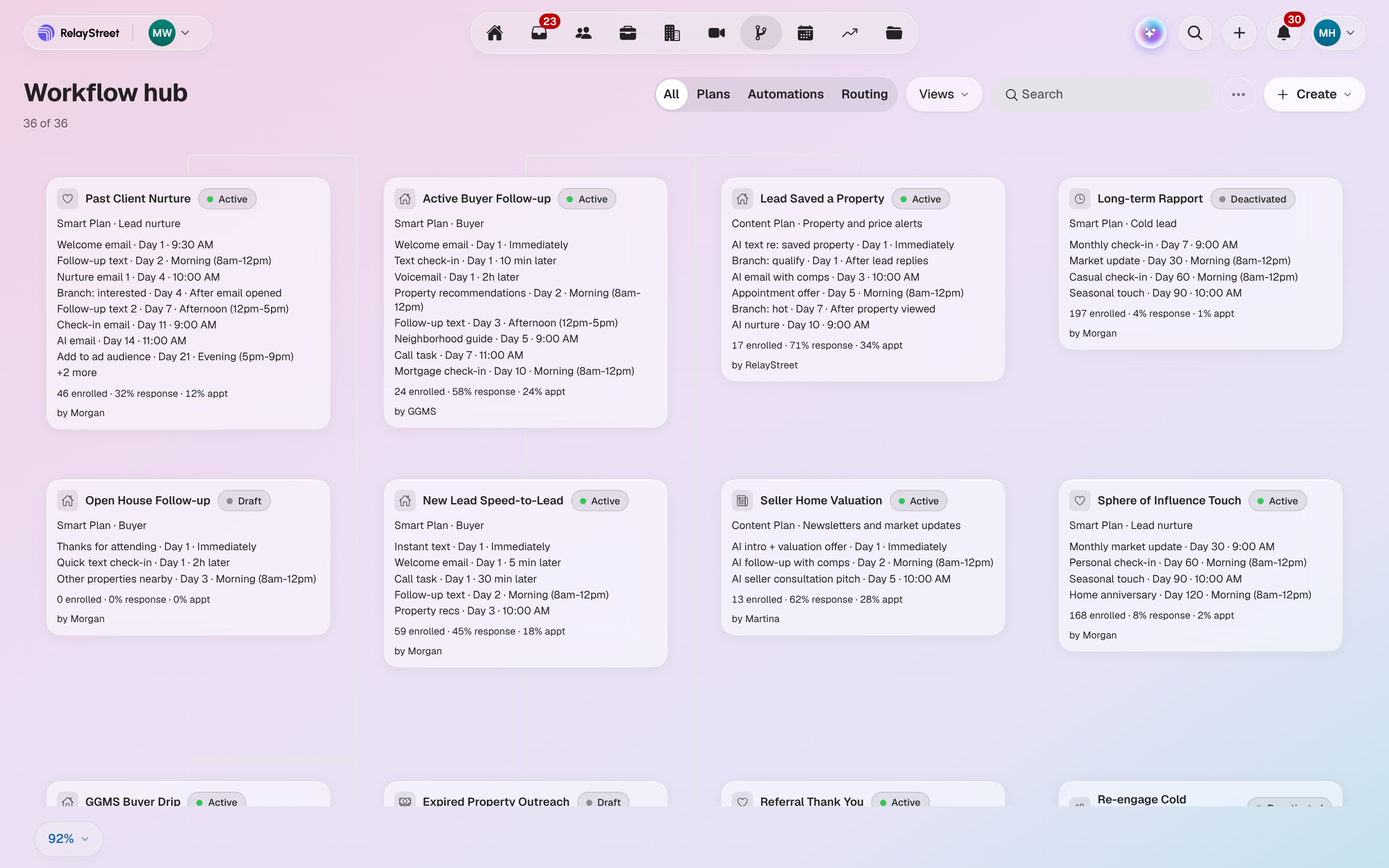
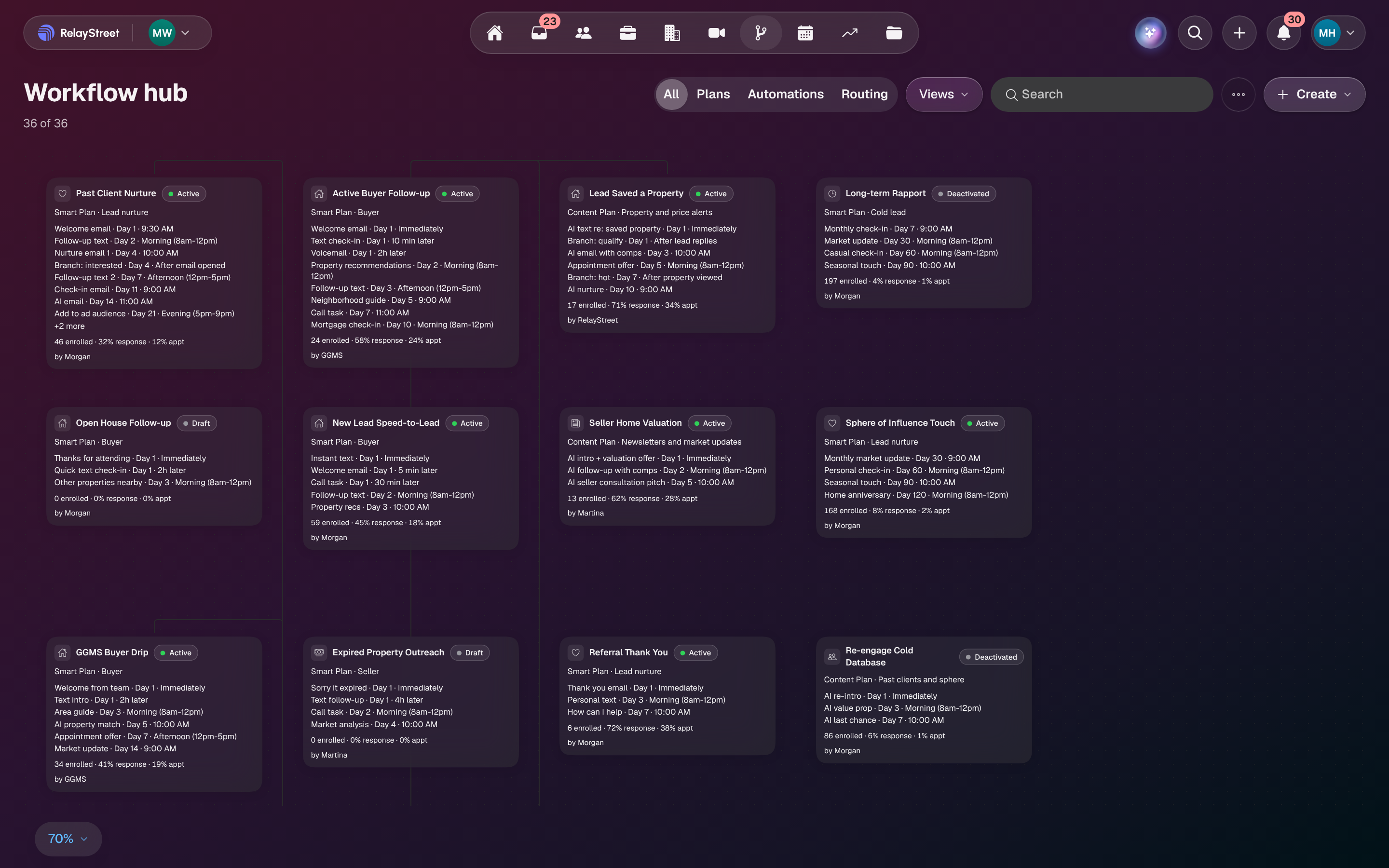
The Workflow hub draws your Smart Plans, automations and routing rules as cards, with a line wherever one starts another. Drag from card to card to connect them.
- Filter to Plans, Automations or Routing
- Lines show what starts a plan or another automation
- Each card shows its status and its numbers
- Double-click a card to open its editor
Run log
Know what ran, what finished and what failed
The Automations list counts runs, completions and failures over the last 7 days. Each automation's History tab lists its runs, newest first.
- Runs, Completed and Failed for the last 7 days
- Filter by category, status or who made it
- Pause or turn on any automation from the list
- Unknown numbers show a dash, never a false zero
How it works
Workflows, step by step
Choose a trigger
Open New automation and pick the event that starts it, then fill in its details, like which tag or how many views.
Add conditions
Narrow it to the leads it should run for, or leave it open to every lead the trigger fits.
Add actions
List what happens next, in order, with time delays between steps where you want them.
Turn it on
Save and turn it on. An automation turns on once it has a trigger and at least one action.
Questions
About Workflows
How is an automation different from a Smart Plan?
A Smart Plan runs a schedule of steps for one lead. An automation waits for an event, checks its conditions, then runs its actions. An automation can start a Smart Plan.
Who can create or change automations?
On the web, owners, admins, brokers and team leads. Everyone else who can open Workflows sees automations read only.
How often can an automation run for one lead?
You choose: once per contact, at most once every 30 minutes, once a day, once every 7 days, or every time the trigger fires.
Can I see what an automation did?
Yes. The list shows runs, completions and failures for the last 7 days, and each automation's History tab lists its runs, newest first.
Is deleting an automation permanent?
Yes. There is no Trash in Workflows. To stop one for a while, pause it instead.