Transactions
Close every deal without losing a date
One record for each deal: the people, the key dates, the money, the tasks and the documents, from first showing to closing.
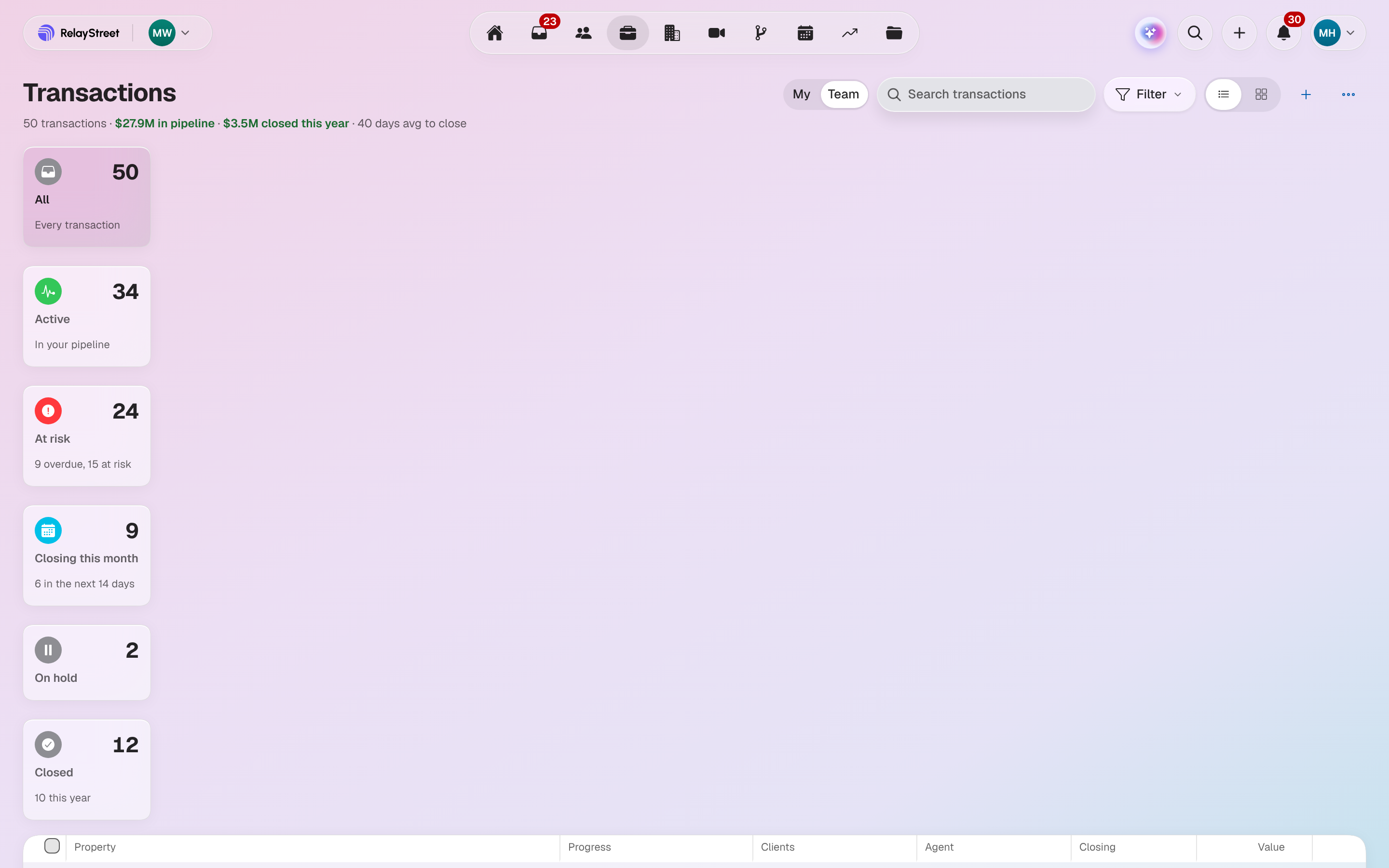
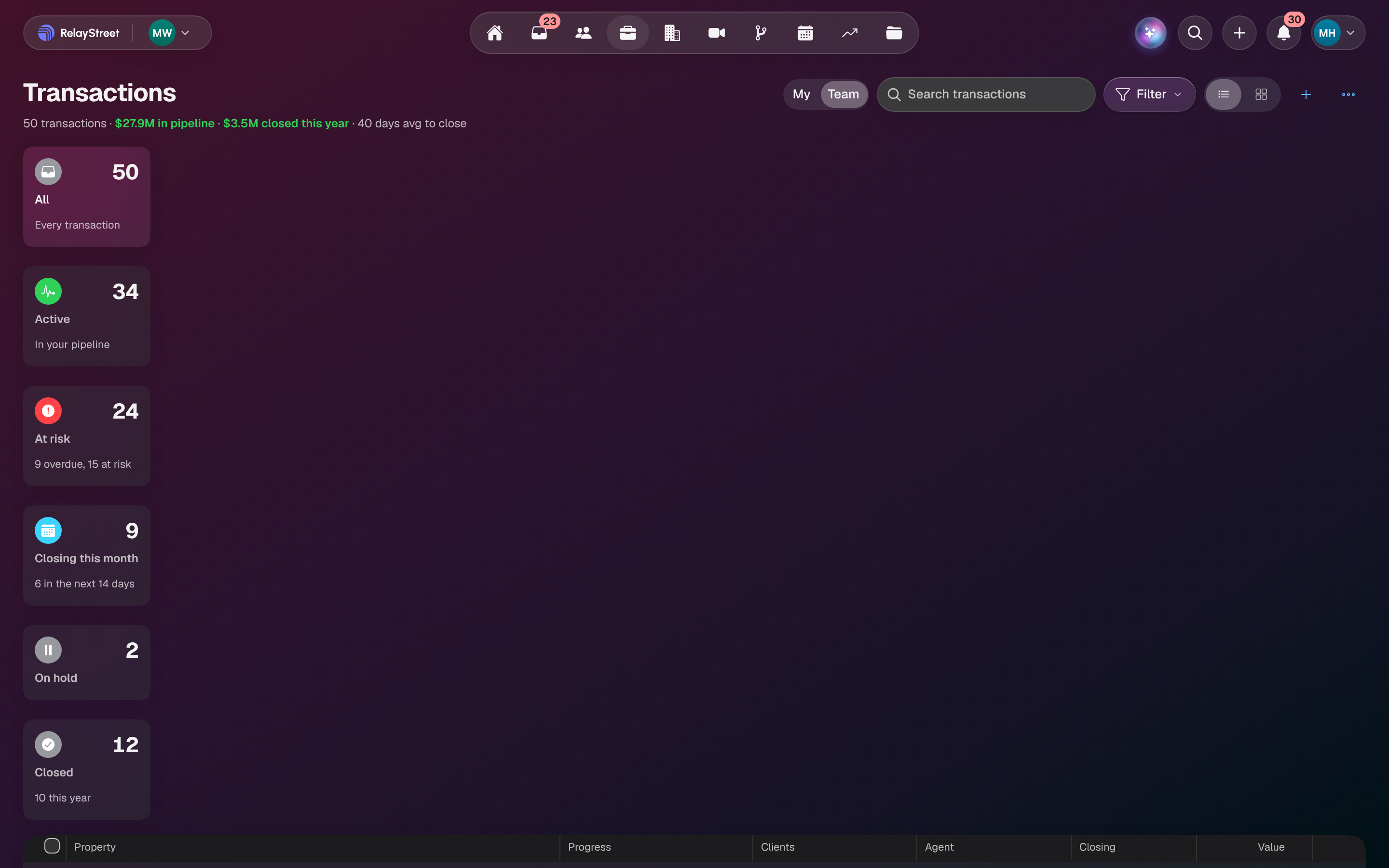
Six smart lists, from Active to Closing this month
List or board, with drag to change stage
Seven deal types, each with its own stages
On the web, iPhone, iPad, Mac and Android
Your pipeline
See every deal and what it is worth
The Transactions list opens with your pipeline in one line: how many deals, the value in pipeline, what closed this year and your average days to close.
- All, Active, At risk, Closing this month, On hold, Closed
- A table on desktop, Wallet-style cards on phones
- Filter by status, type, agent, stage and health
- Switch between My deals and the Team view
Stages
Move a deal forward with one drag
Board view gives every stage a column with its total value. Drag a card to the next stage, and Undo is right there if you slip.
- One column per stage, in your stage order
- Each column shows its total value
- Change stage or status from any row menu
- Move, assign or archive several deals at once
The deal page
Everything about a deal on one page
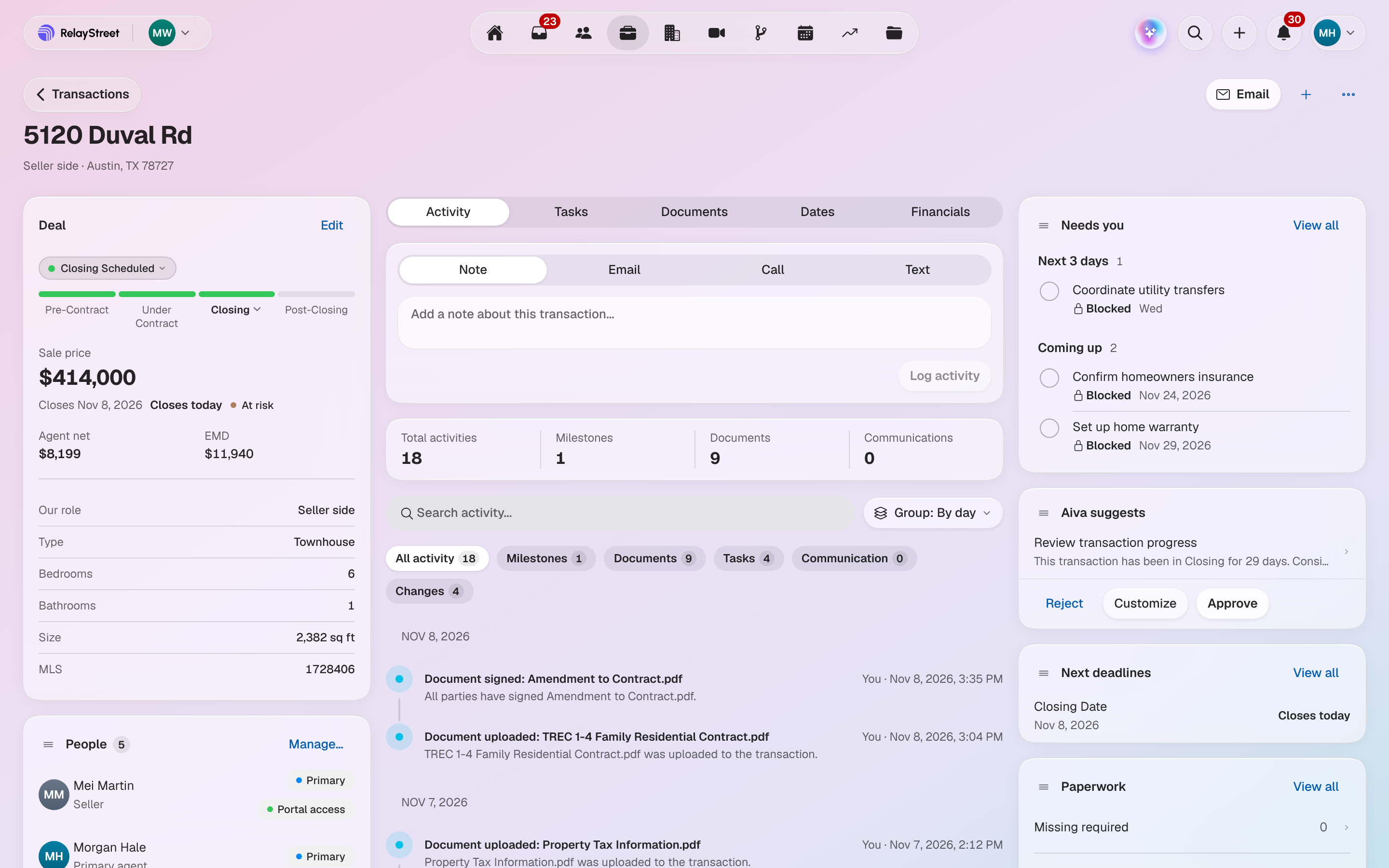
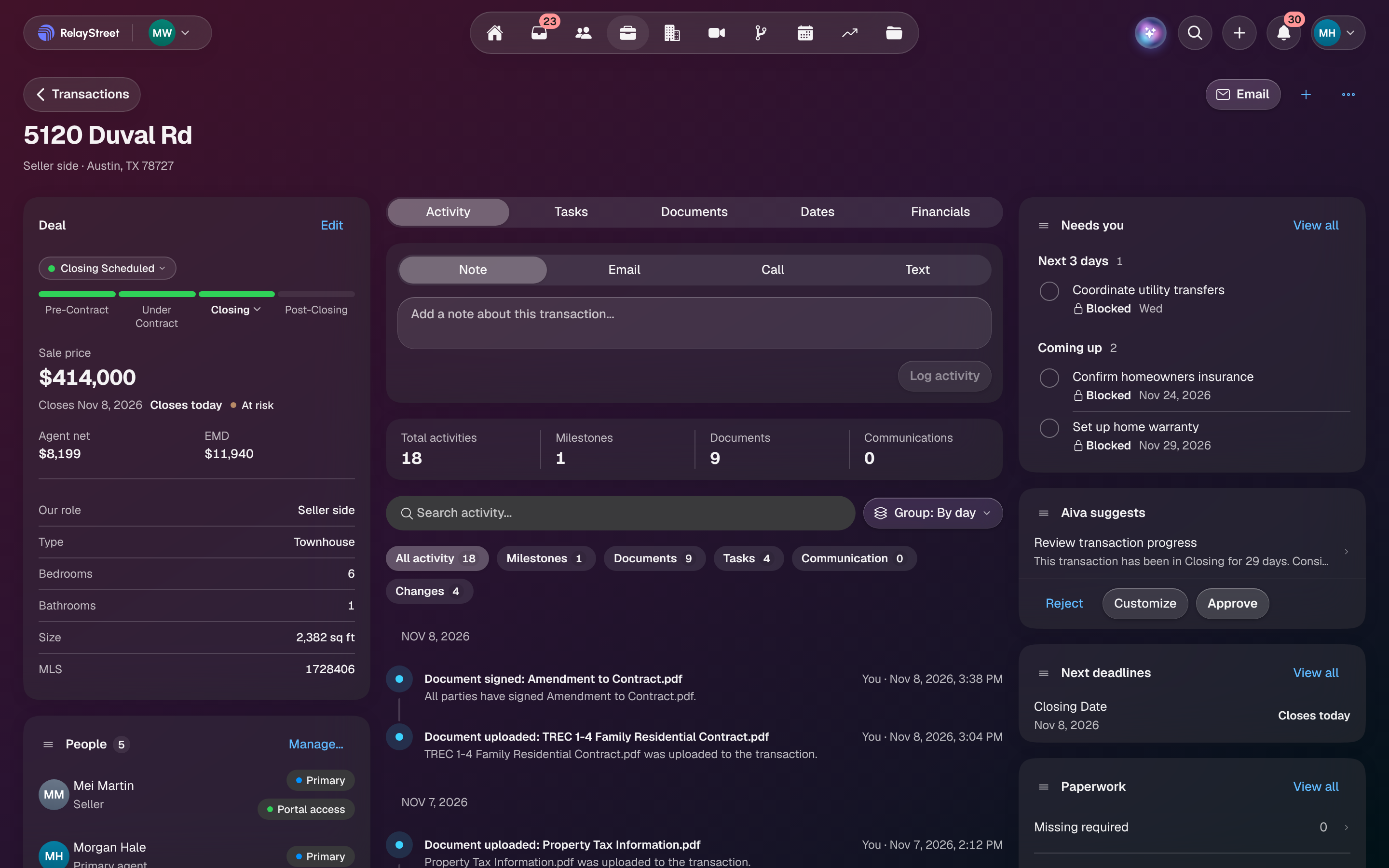
The deal page puts the deal, the work and what needs doing side by side: the sale price, the countdown to closing, the people and the next deadlines.
- Countdown to closing with On track, At risk or Overdue
- Tap the health badge to see why a deal is at risk
- People grouped as Clients, Our team and External partners
- Needs you lists what is overdue and due today
Key dates
Never miss an inspection deadline
Ten key dates in four groups, from contract date to possession. Dates can follow a formula, so moving one shows you every date that depends on it.
- Contract, due diligence, closing and possession dates
- Formulas keep dependent dates in step
- Contingencies as Pending, Satisfied, Waived or Expired
- Next deadlines with a countdown on the deal page
Checklists
Start every deal with the right checklist
Pick a starting template when you create a deal, and it fills in the tasks, dates and document folders for that deal type.
- Templates add tasks, dates and folders in one step
- Duplicate tasks are skipped when you apply more
- A task can block others until it is done
- Task queue shows every deal's tasks by due date
Paperwork and money
Know your paperwork and your net at a glance
Upload contracts, disclosures and inspections into folders, see what is still missing, and work out the agent net from the commission split.
- Missing required documents, each with an Upload button
- PDF, Word, Excel and image files up to 25MB each
- Approve or reject documents waiting for review
- Commission calculator with splits and deductions
How it works
Transactions, step by step
Create the deal
Open New transaction, pick the type and a starting template, then add the property, the client, the money and the key dates in five steps.
Add the people
Add the lender, the title officer, the inspector and the rest of the team, so everyone on the deal is one tap away.
Work the tasks
Tick tasks as you go. The deal page shows what is overdue, what is due today and the next deadlines.
Mark it closed
Enter the final numbers, check the closing checklist, then move the client to Past client and start a post-close Smart Plan.
Questions
About Transactions
Which kinds of deals can I track?
Seven types: Buyer side, Seller side, Dual, Property sale only, Lease, Referral and Commercial. Every deal has a stage, like Under Contract, and a status inside it, like Inspection Period.
Where can I use Transactions?
On the web, iPhone, iPad, Mac and Android. Desktop shows a table and a three column deal page. Phones and tablets show cards and a one column deal page. Mark closed is on the web.
Who can see and edit deals?
Owners, Admins and Brokers see and change every deal. Team Leads and Sales Managers see the team's deals and edit their own. Transaction Coordinators work the whole team's files. Agents work their own deals.
Can I start a deal from a contact or a property?
Yes. A Signed outcome on an appointment offers to create a transaction for that lead, and Start transaction on a property opens New transaction with the property filled in.
What happens when I archive a deal?
Archive sets the status to Archived and takes the deal out of your lists. It is not deleted.