Roles and permissions
Give every person exactly the access their job needs
Eleven built-in roles cover everyone from the owner to a read-only viewer. Make your own role from any of them, then fine-tune one person at a time.
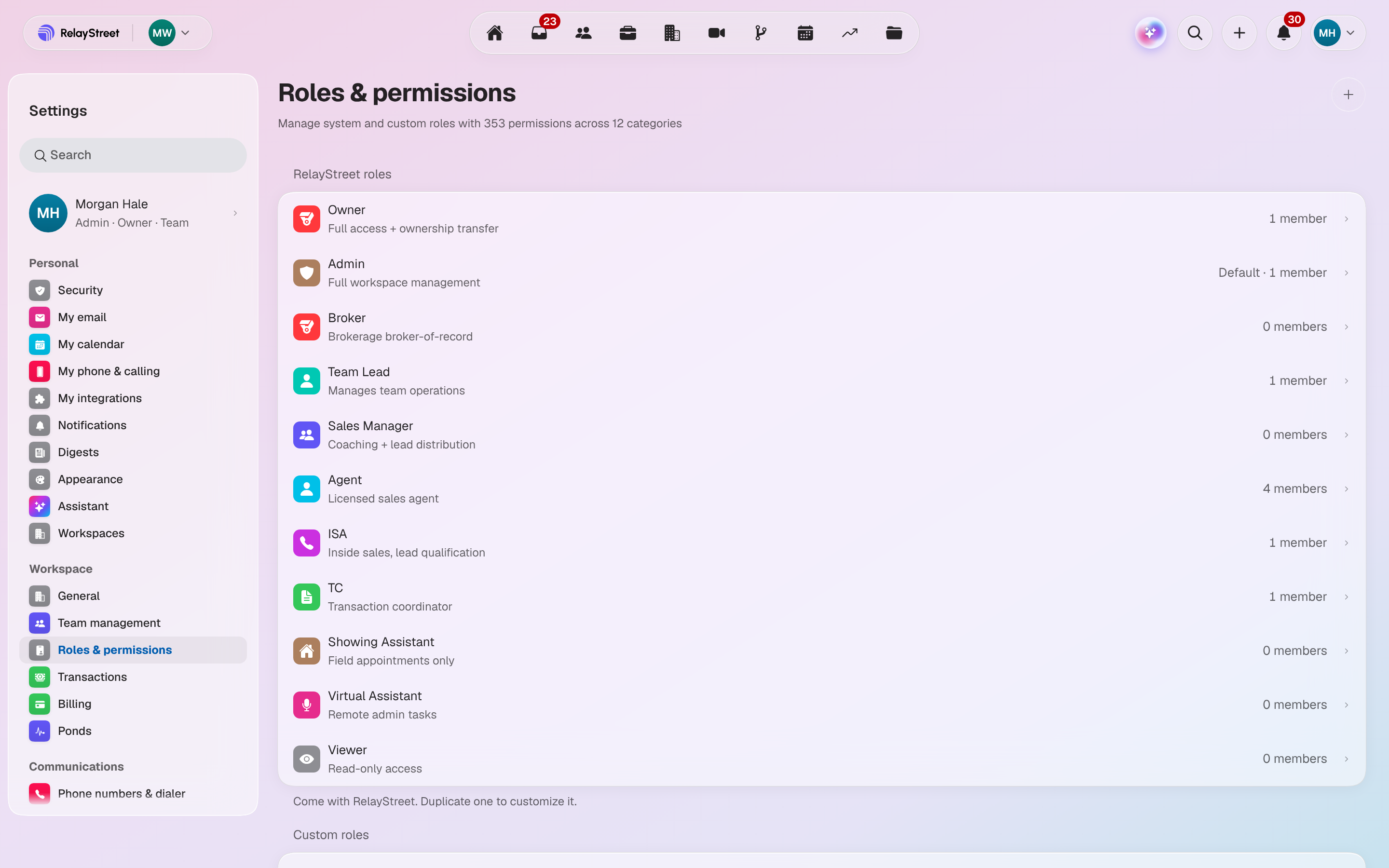
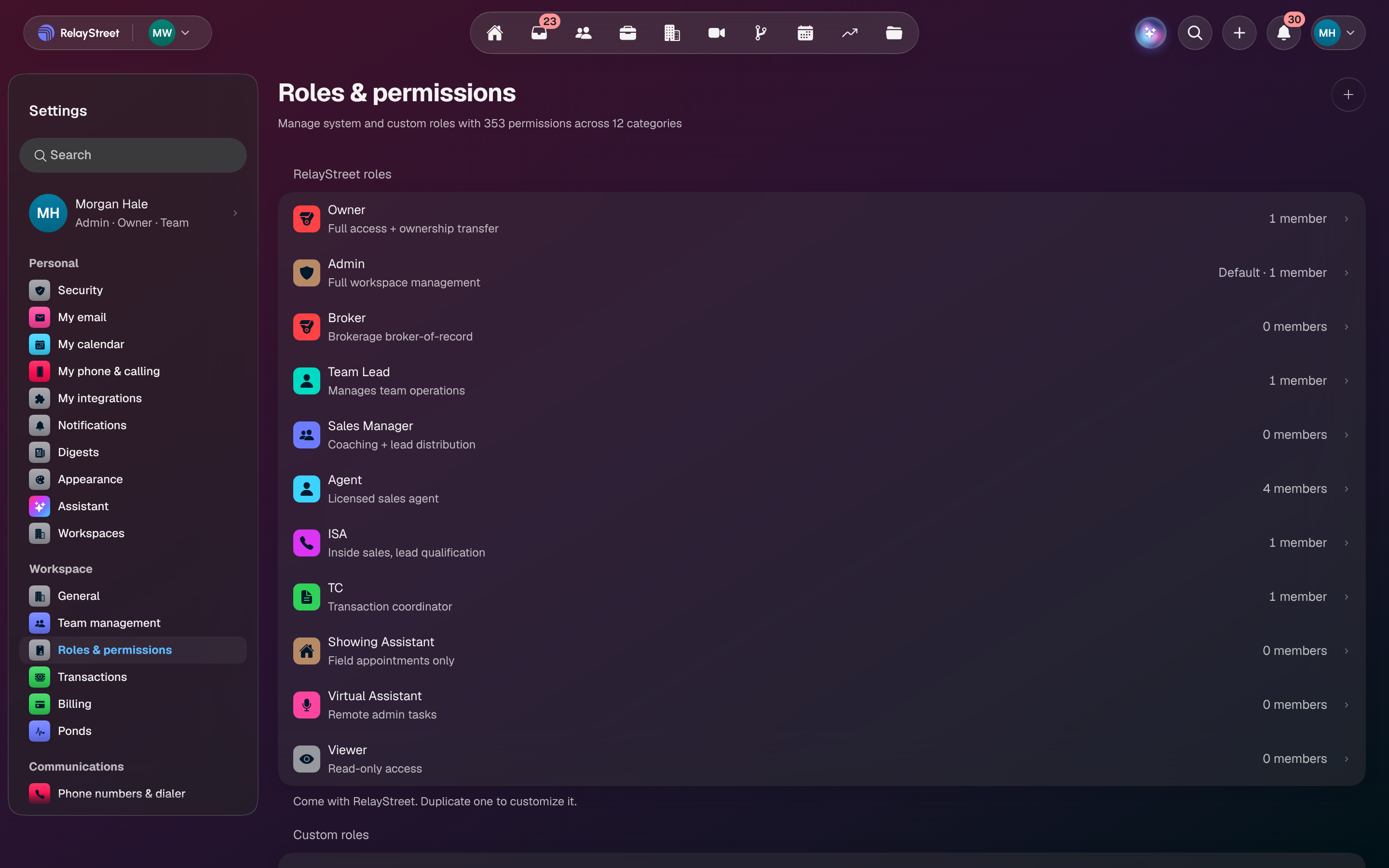
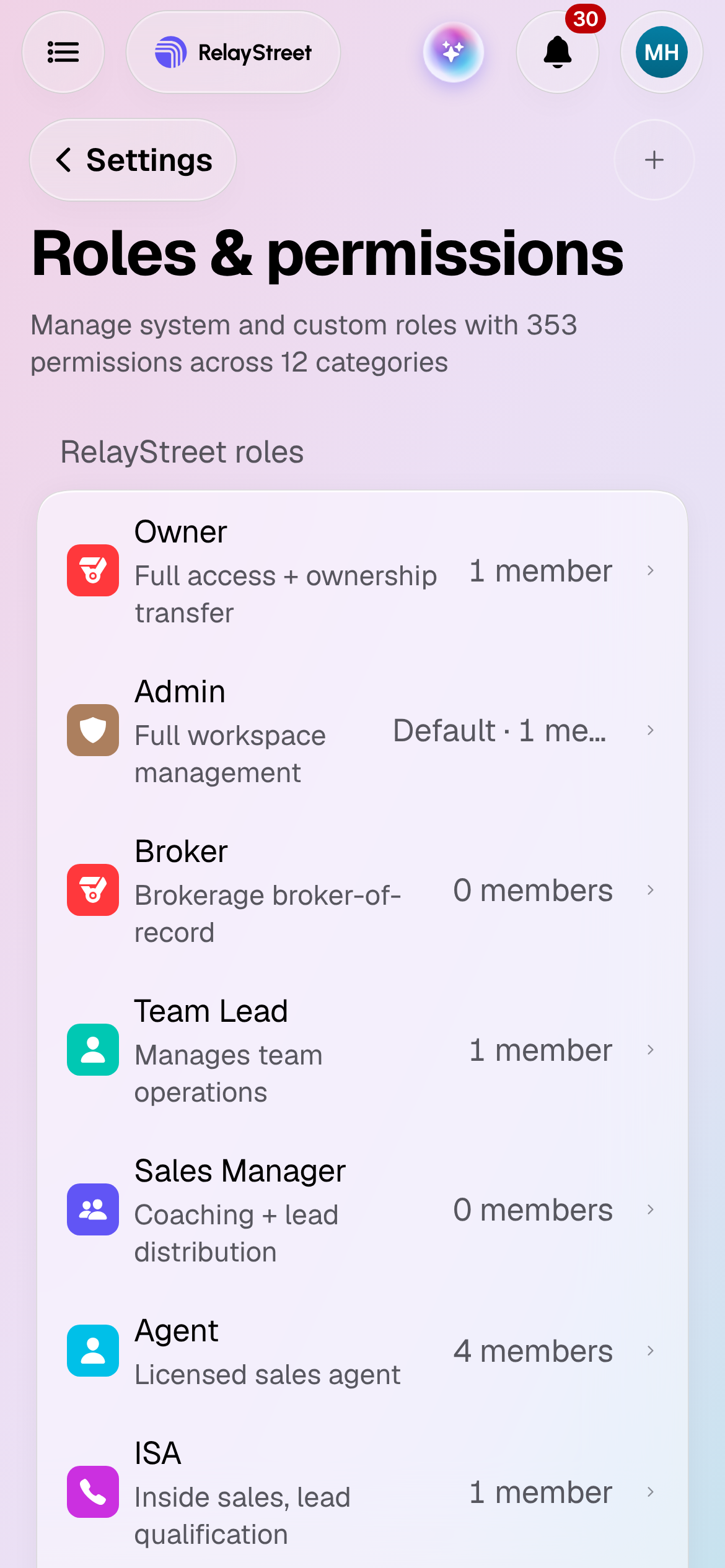
11 built-in roles, ready on day one
353 permissions in 12 categories
Grants and revokes for one person
Portal access for everyone on a deal
Built-in roles
Start with roles that match a real brokerage
Owner, Admin, Broker, Team Lead, Sales Manager, Agent, ISA, TC, Showing Assistant, Virtual Assistant and Viewer come ready. Open any one to read exactly what it allows.
- Each role says what it is for and how many hold it
- Built-in roles open read only, so nobody breaks them
- Owners, admins and brokers hold every permission
- Team leads and sales managers see all but billing and API keys
Custom roles
Shape a role around how your office works
Create a role from any RelayStreet role as a template, or from blank. Name it, describe it, pick a color, then turn permissions on and off.
- Start from a built-in role or start blank
- Role names up to 50 characters
- Set a role Active or Inactive
- Delete a custom role once nobody holds it
Permissions
Find any permission in seconds
Permissions sit in 12 categories, from Leads & CRM to Properties. Filter by a word, or turn a whole category off with one switch.
- Each category shows how many are on, like 12/53
- Turn all of a category on or off with one switch
- Turning a category back on restores what you had
- Filter by category name or permission label
One person
Make an exception for one person, not the whole role
On a team member's page, flip any permission away from their role. That change applies to that one person only.
- Changes are marked +override or -override
- The footer counts what is granted and revoked
- Every change saves the moment you flip it
- Clear all overrides puts them back on their role
Client portal
Choose what clients, lenders and title see on a deal
Portal access by role sets what each person on a transaction sees in the portal and what they can do with tasks. Changes apply to every deal right away.
- Nine portal roles, from Clients to Everyone else
- Hidden, Can see, Can complete or Can add, per task type
- Show documents, key dates, messages and the team
- Restore defaults for any one portal role
Everywhere
Every screen follows the same rules
Menus, pages, buttons and lists all read the same permissions. A page someone cannot open tells them to ask an admin.
- A button you cannot use is not drawn at all
- Dashboard cards follow your real permissions
- Compliance keys like Override DNC live in the catalog
- No access pages say who to ask
How it works
Roles and permissions, step by step
Pick a starting role
Choose Create role and start from a RelayStreet role, or from blank with only the basics on.
Adjust the switches
Open each category and turn permissions on or off, or filter to find one by name.
Save the role
Name it, add a description and a color, then choose Create role.
Fine-tune a person
Open a team member's page and flip any permission for just that person.
Questions
About Roles and permissions
Who can manage roles?
Anyone with the Edit roles permission, plus the workspace owner. With the built-in roles that is Owner, Admin and Broker.
Can I change a built-in role?
No. Built-in roles open read only. Pick one as the template for a new role and change that instead.
Can I give one person more access without a new role?
Yes. On their member page, flip the permission on. It becomes a grant for that person only. You need the Override permissions permission to do it.
Can other people see a member's permissions?
Anyone who can view team members can read them, but only people allowed to override permissions can change a switch. For everyone else the switches are greyed out.
How many permissions are there?
353 switches in 12 categories. Nine basics, such as seeing your own leads, messages and calendar, are always on for every role.
Where do I find it?
In Settings, in the Workspace group, under Roles & permissions. You can also search Settings for permissions or custom role.