Inbox
Answer every lead from one inbox
Every text, email, call and voicemail with a person sits in one conversation. Reply in the channel they used, and never lose the thread.
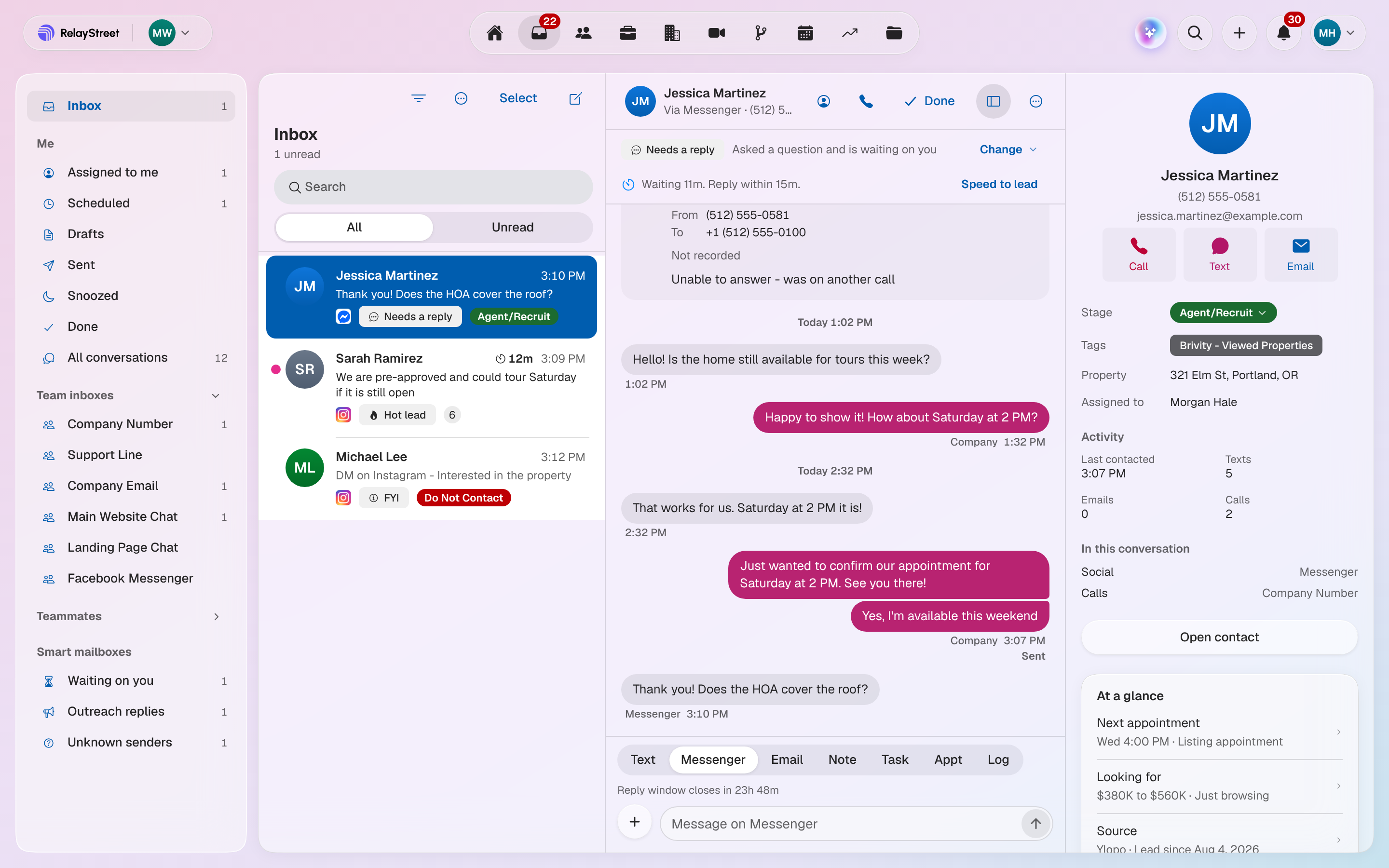
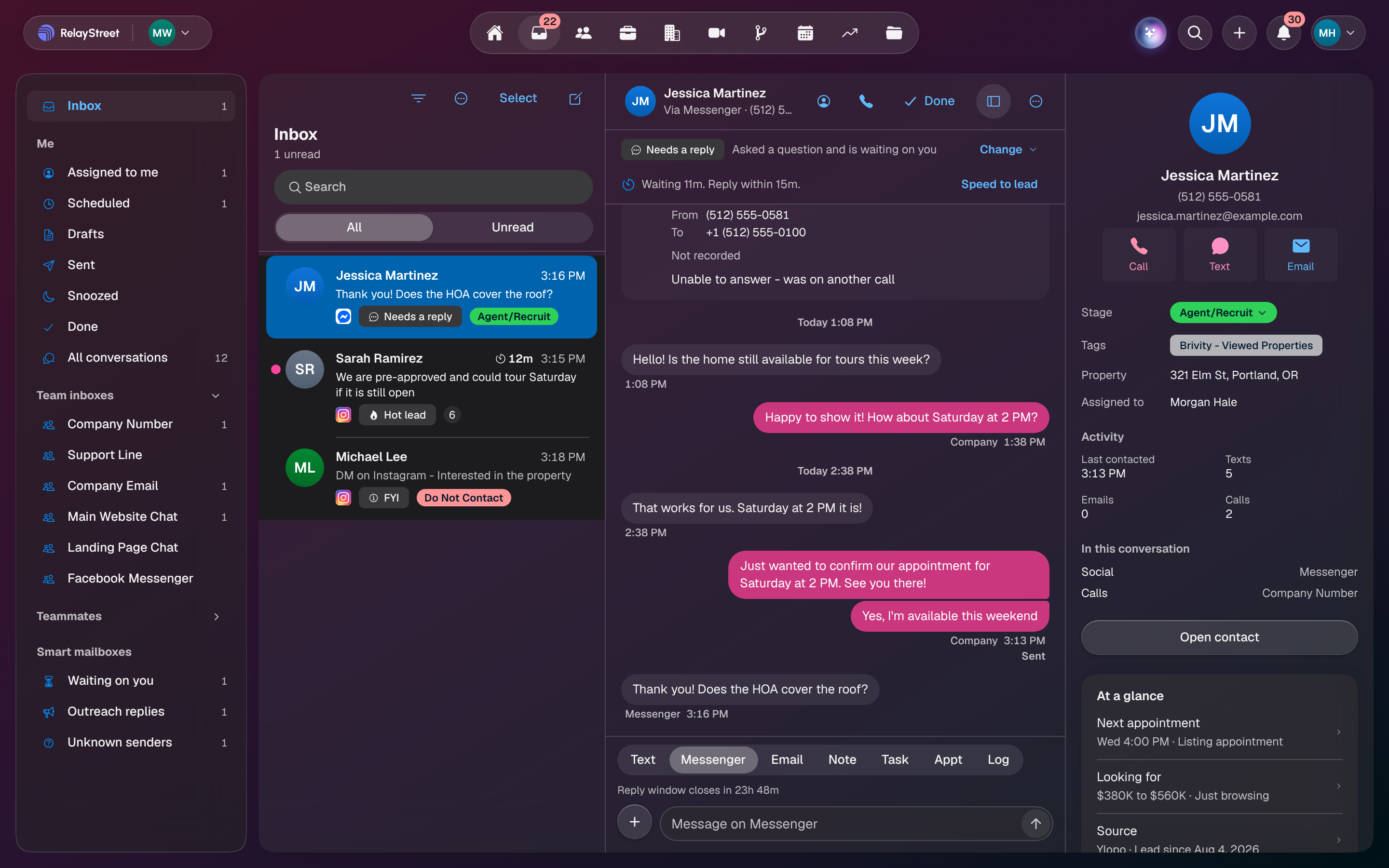
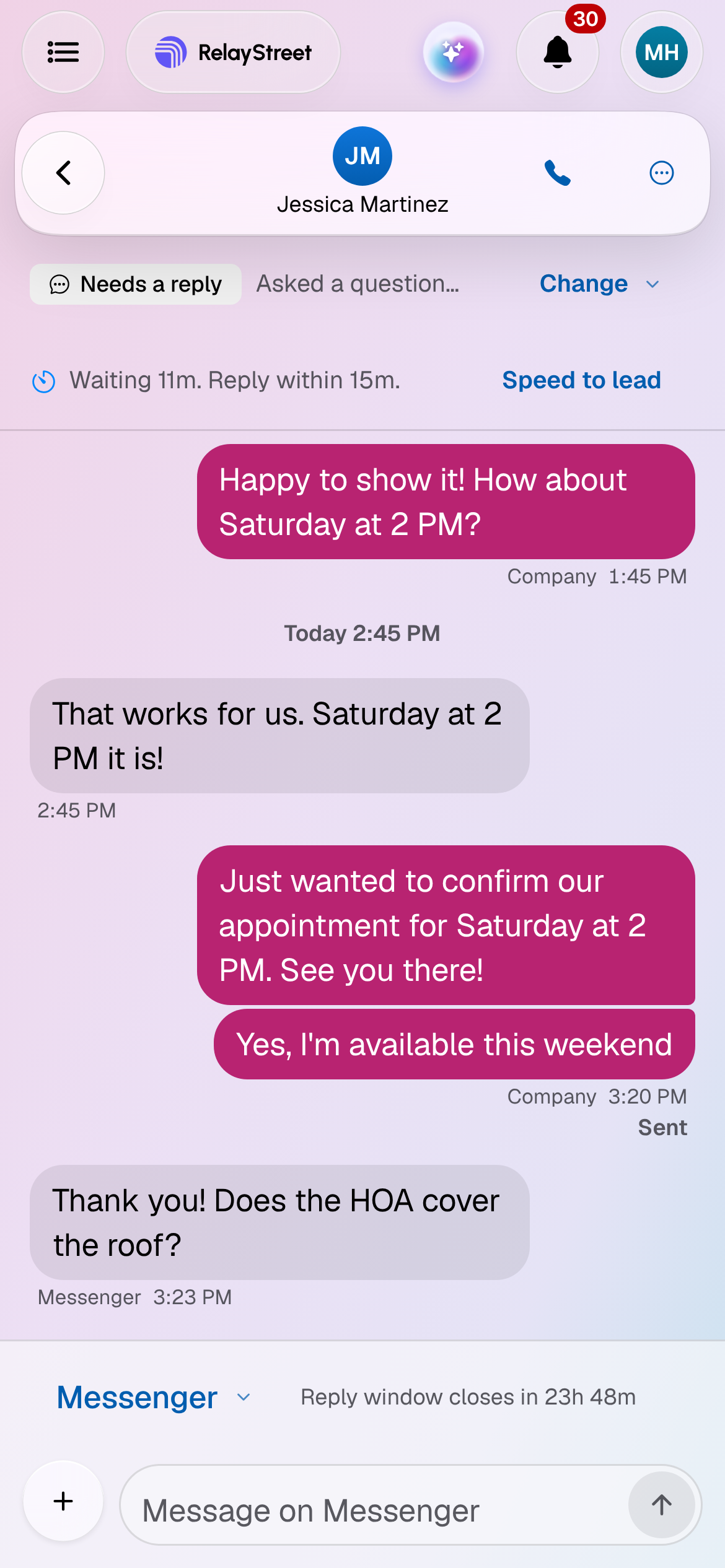
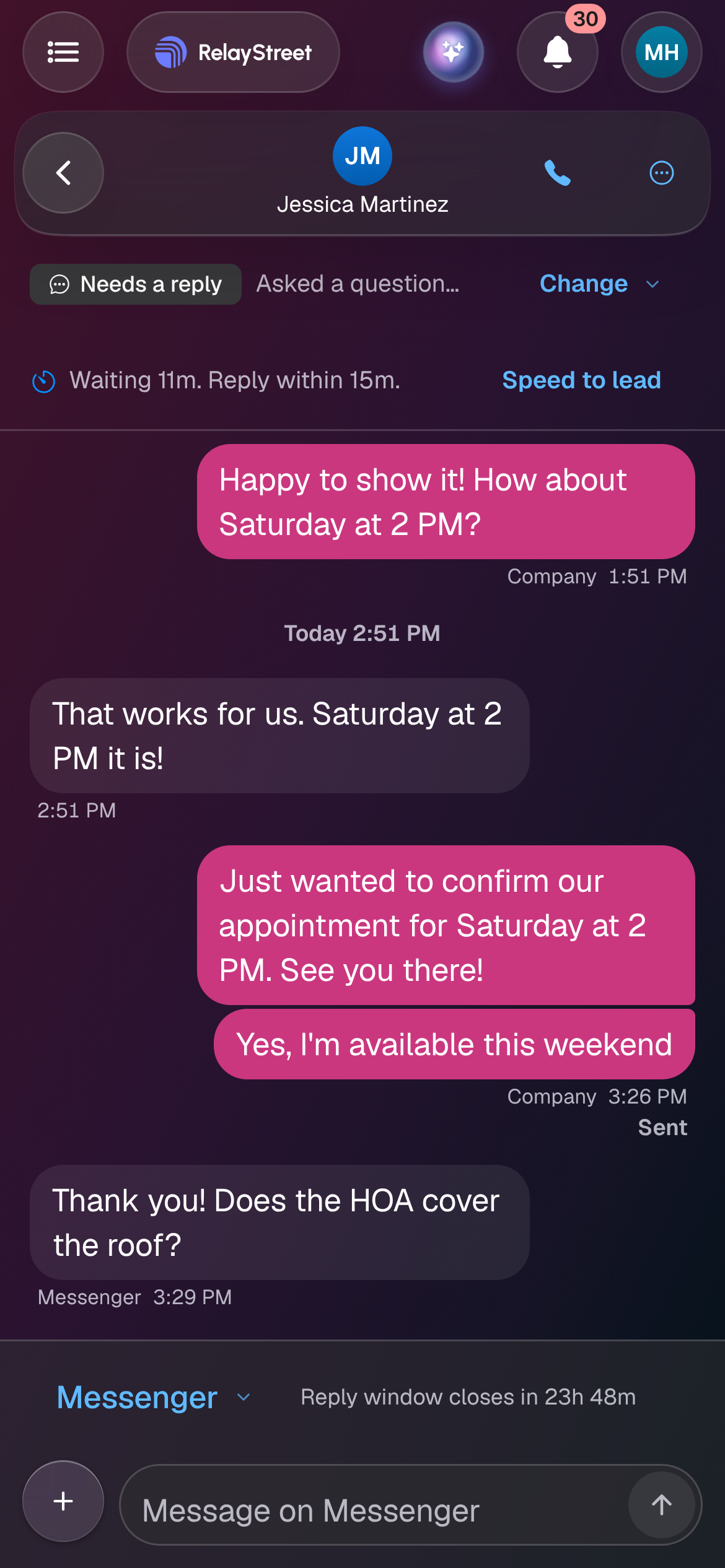
One person is one conversation, across every channel
Waiting on you shows who wrote last
Send later checks their contact hours first
STOP replies pause texts on their own
One thread per person
The whole conversation, wherever it started
All of a lead's texts, emails, calls and web chat merge into one row. Texts read like Messages, email reads like Gmail.
- Texts, email, calls, voicemail and web chat together
- Delivered and Read under the texts you send
- Internal notes your team sees and the lead does not
- The same view opens from the lead's contact record
for them
Speed to lead
See who is waiting on you
Mailboxes sort your day before you start it. Open Waiting on you and answer the people who wrote last.
- Inbox, Assigned to me, Sent, Scheduled and Done
- Waiting on you, Outreach replies and Unknown senders
- Sort by waiting longest, or show only unread
- Filter by channel, missed calls or attachments
Reply your way
Answer in the channel they chose
The reply bar starts in the channel they last used. Pick the line you send from, add a template, and the merge fields fill in for that person.
- Reply with Text, Email, Note, Task, Appt or Log
- Templates with merge fields filled for this person
- Pick the number you send from in From
- Your draft is kept for each person as you type
for them
Good timing
Texts that arrive at a decent hour
Send later lets you pick a day and a time, or a random time in the morning, afternoon or evening. Texts check the lead's contact hours in their time zone and state.
- Morning, Afternoon, Evening or a specific time
- A time outside their hours tells you the allowed window
- Queued sends wait in the Scheduled mailbox
- Send now, edit or cancel anything queued
for them
Respect the opt-out
The rules are checked before you hit Send
Every text and email passes the same checks first. If something blocks a send, the reason shows where the Send button was.
- A STOP reply pauses texts until they text START
- Do Not Contact locks texts, calls and email
- Texts need written consent on file
- The suppression list is never sent to
for them
Clear the list
Get to Done and stay there
Mark a conversation Done, pin the ones that matter and move through the list from the keyboard.
- Done comes with Undo, one or many at a time
- Pin a conversation to the top of the list
- Group texts with 2 to 10 people
- J and K to move, R to reply, E for Done
How it works
Inbox, step by step
Open a mailbox
Start with Inbox or Waiting on you. Each row is one person with every channel inside.
Read the whole story
Texts, emails, calls and notes show in order. The person column shows their stage, tags and last contact.
Reply or schedule
Answer by text or email from the right line, or schedule it for a time inside their contact hours.
Mark it Done
Move the conversation to Done. When the lead writes back, it returns to your Inbox.
Questions
About Inbox
Which channels are in the Inbox?
Texts, email, calls, voicemail and web chat, plus your team's internal notes. All of one person's threads merge into one conversation.
Who sees which conversations?
Agents and ISAs see their own. Sales Managers, Owners, Admins and Brokers see everyone's and can open a teammate's inbox.
What happens when a lead replies STOP?
Texts to that number stop until they text START again. Calls and email still go, and the conversation shows the opt-out.
How big can a group text be?
A group text has 2 to 10 people. People with no mobile number or marked Do Not Contact cannot be added.
Does deleting a conversation lose the messages?
No. Delete takes it out of the Inbox, and the messages stay on the lead's timeline.
Is the Inbox on my phone?
Yes. The Inbox is on the web, iPhone, iPad, Mac and Android. On iPhone it has its own tab.