Skip to content

Email campaigns

Email campaigns built from your properties and your Smart Lists

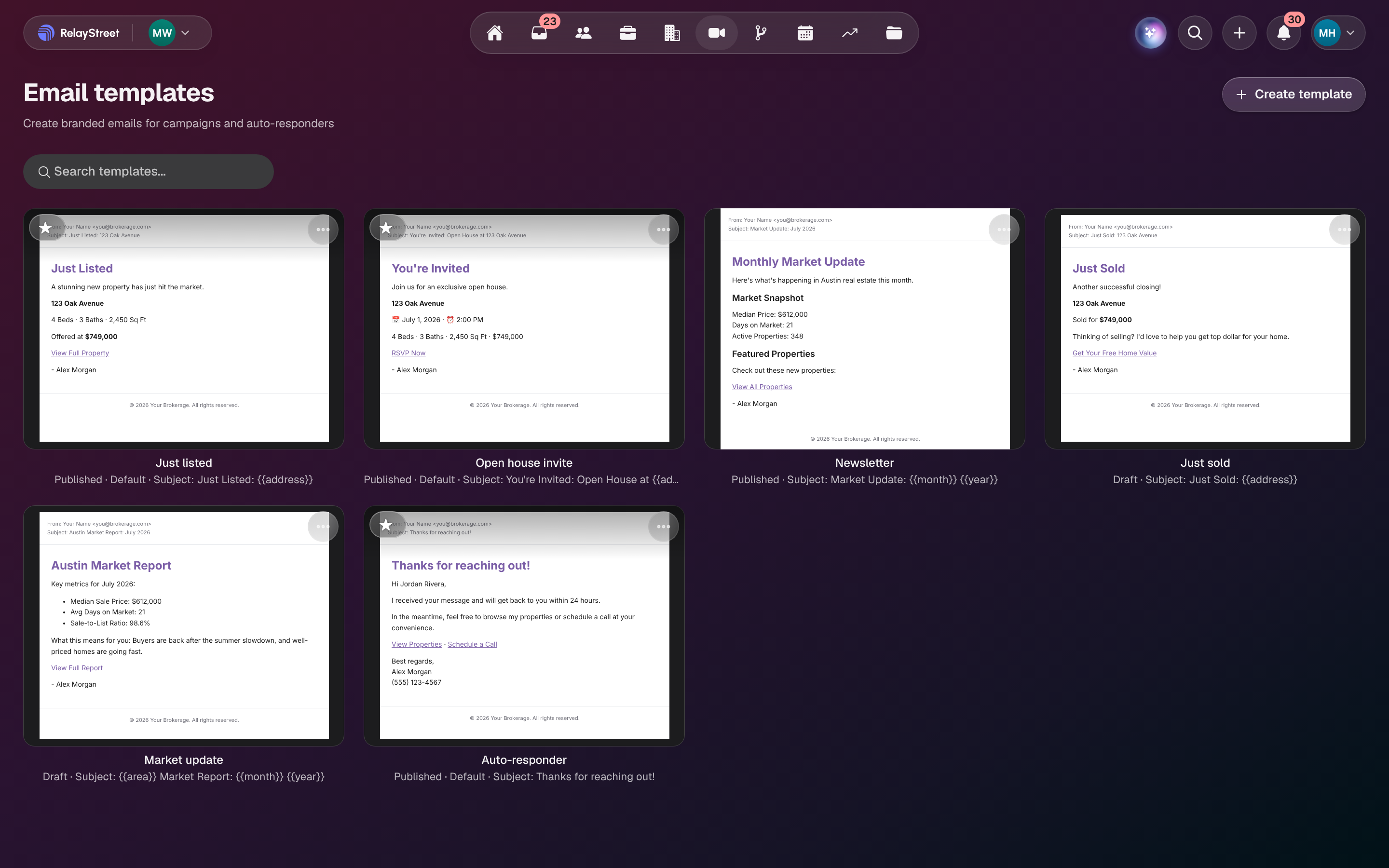
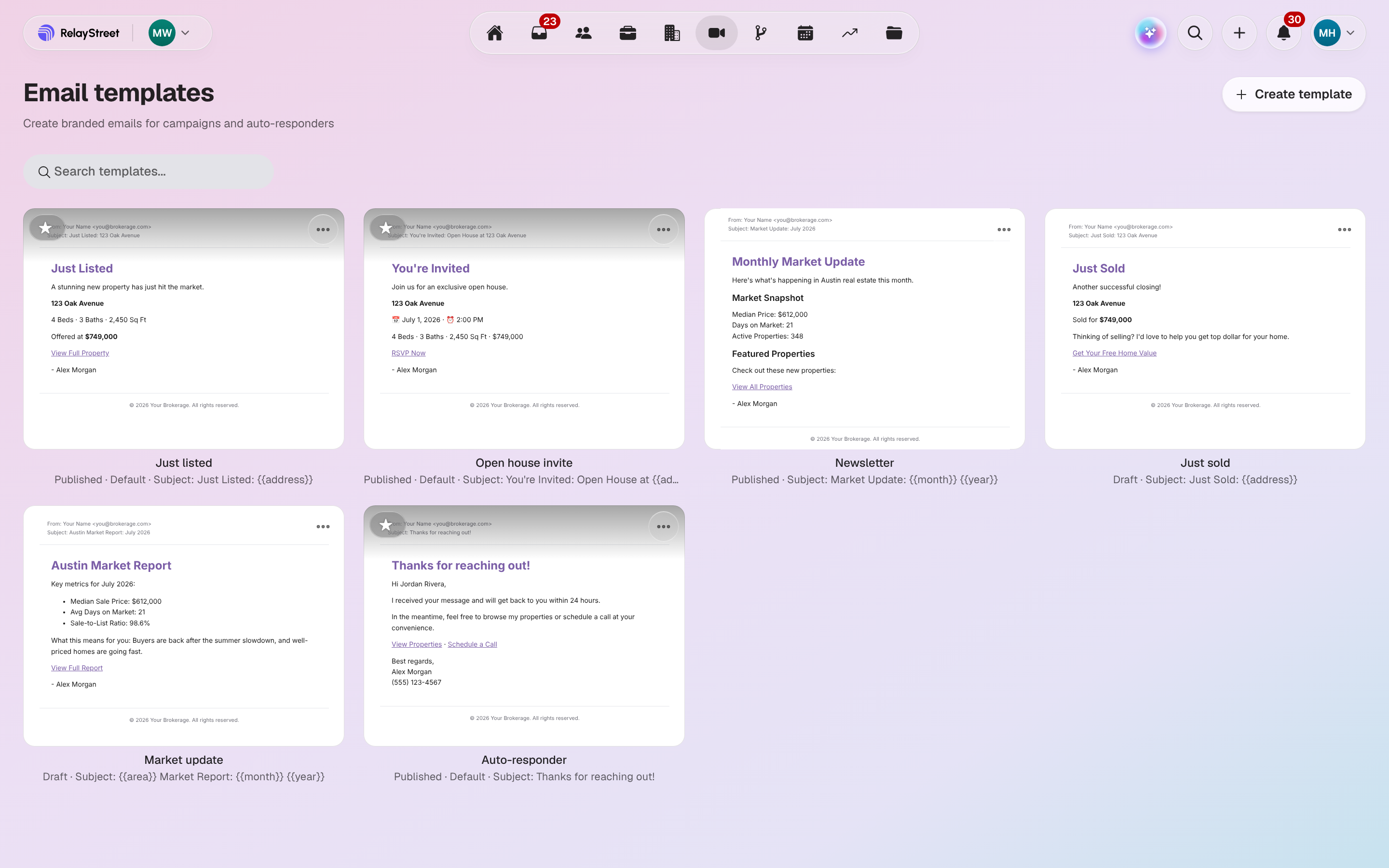
Start from Just listed, Just sold, Open house, Newsletter, Market update or a blank page. Design it in a full builder, send it to everyone or to one Smart List, and see who opened and clicked.
Email builderMac 1512 × 982

Get the highlights

Six ways to start

Pick the property and the email has its facts

Just listed, Just sold and Open house fill in the property’s address, city and facts. Newsletter, Market update and Custom start from a layout. Eight layouts are drawn as live previews.

  • Start with a template, from scratch, or by describing it
  • Every new campaign opens at step 2 of 6
  • Autosaves half a second after you stop typing
Email templates for just listed, just sold, open houses, newsletters and market updates.

Builder

Design it block by block

Twelve block types, section layouts and six brand presets. Merge fields put in a first name or a property’s address. Preview it on desktop and on a phone.

  • On the web, and in its own window on the Mac
  • 50 steps of undo, and zoom from 30% to 200%
  • Copy the HTML or download the .html file
Email builderMac 1512 × 982

Who gets it

Everyone, or one Smart List

The To step counts who will get it and shows who is left out and why: unsubscribed, marked do not email, bounced, or no email address on file.

  • Schedule it in the time zone you pick, from Eastern to Hawaii
  • Subject and preview text up to 150 characters
  • From and reply-to set per campaign
Campaign setupWeb 1440 × 900

Newsletters

A newsletter is a campaign you send again

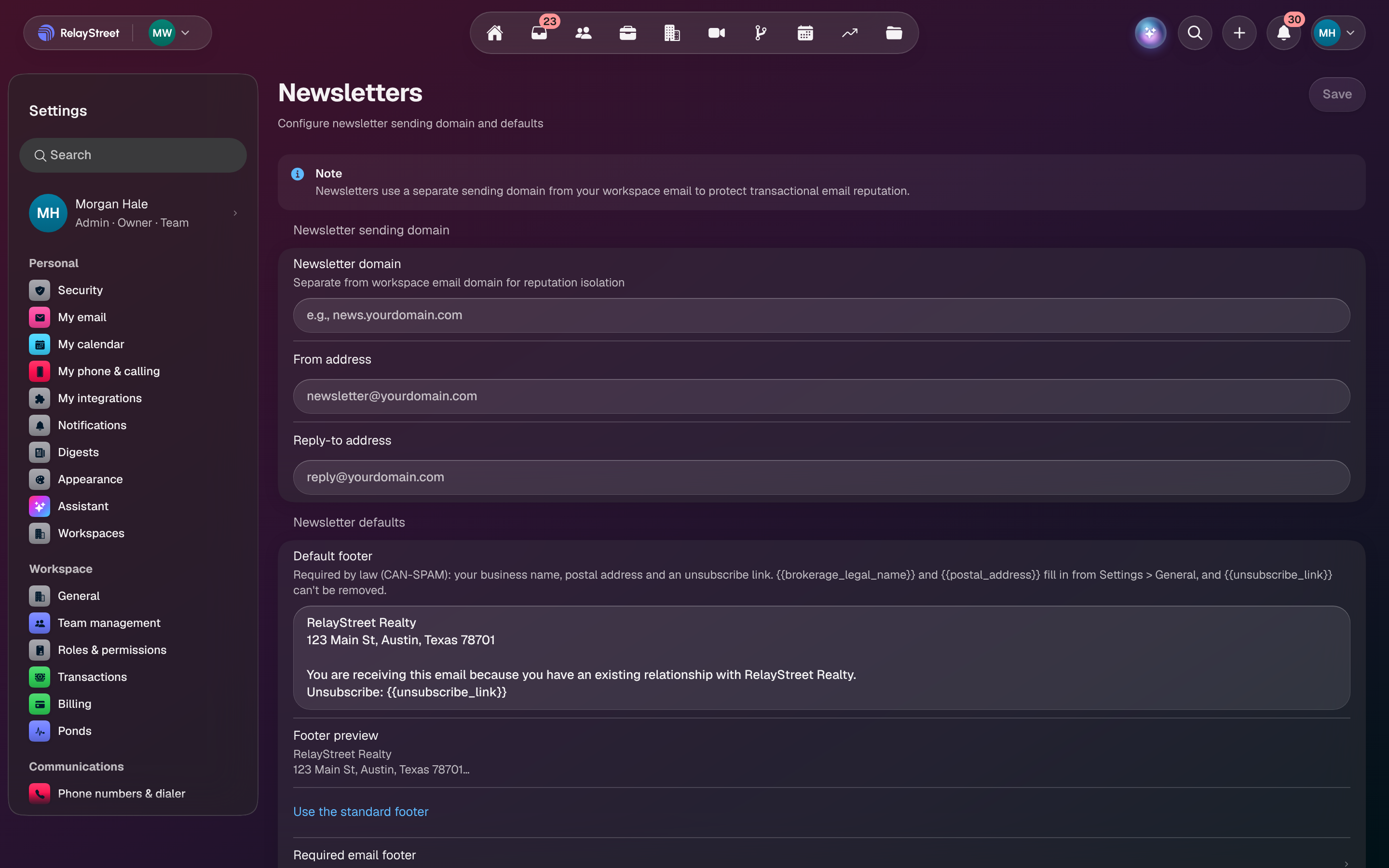
Start from the Newsletter or Market update layout. Newsletters can send from their own domain, so the email you use every day keeps its reputation.
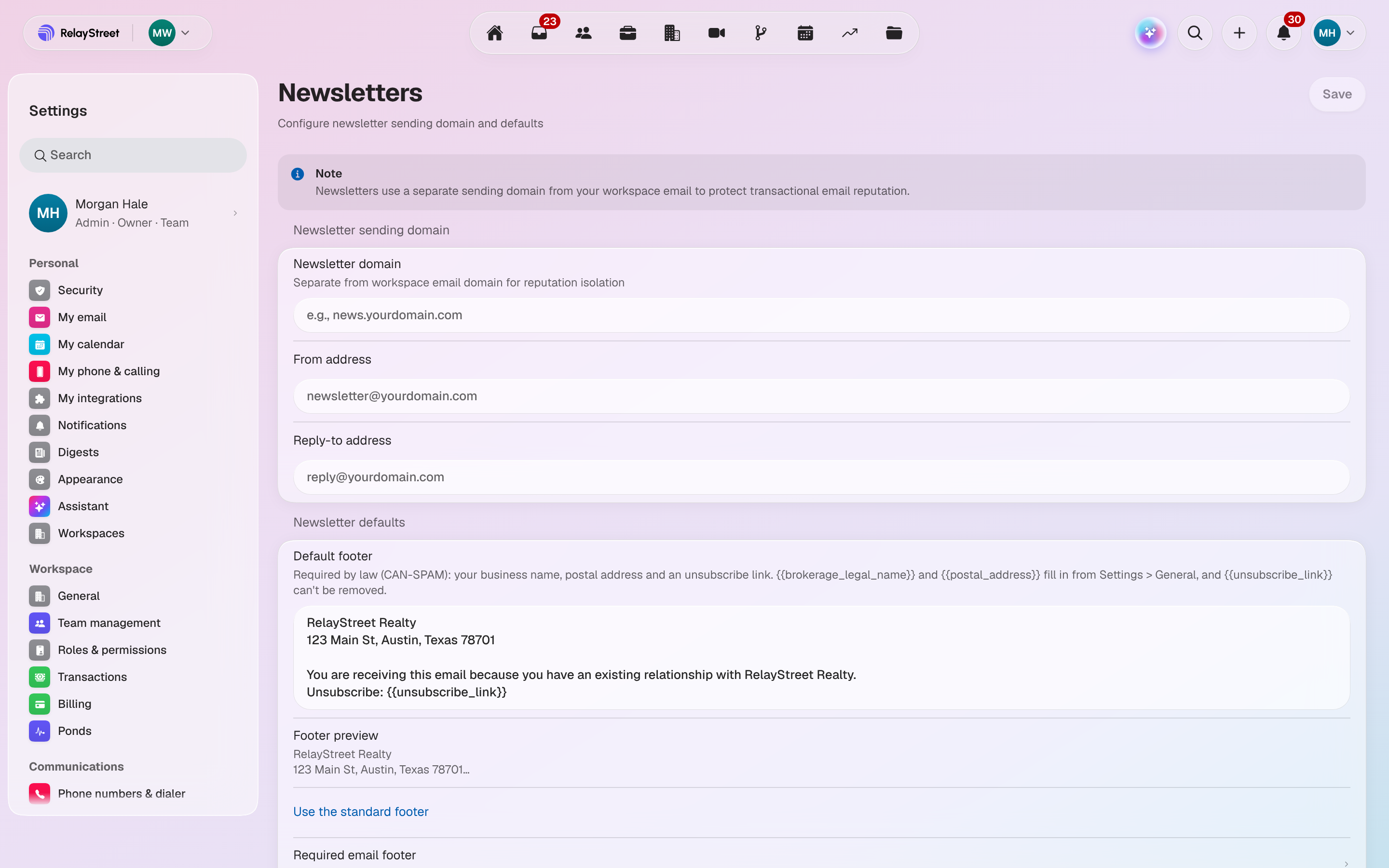
  • Verify the domain with the SPF, DKIM and DMARC records shown
  • A standard footer with your business name, postal address and unsubscribe link
  • Your own unsubscribe page, on https
Newsletter settings, with who gets the newsletter and how often it goes out.

Results

See what each email did

Sent, delivered, opens, clicks, unsubscribes and bounces, with clicks for every link. Opens can include automatic opens by Apple Mail, so read them as a ceiling.

  • Clicks for every link
  • Unsubscribes and bounces on the same page
  • Results for each campaign on the web
Campaign resultsWeb 1440 × 900

How it works

Email campaigns in four steps

  1. 01

    Start it

    Use a template, describe it, or start blank. Or tap a tile and pick a property.

  2. 02

    Design it

    Blocks, brand colors, merge fields and the property’s facts in the builder.

  3. 03

    Address it

    To, from, subject and send time, with a count of who is left out.

  4. 04

    Check and send

    Clear the compliance panel, then send or schedule it.

Rules

The legal footer can’t go missing

Every marketing email carries what the law asks for, and the builder won’t let it be deleted.

CAN-SPAM footer, always

Unsubscribe and manage preferences links, your postal address and your legal name. The last unsubscribe block can’t be deleted.

A compliance panel

It checks the legal name, footer, unsubscribe link, address and fair housing wording, and warns about alt text and contrast.

Suppression you can see

Unsubscribed, do not email and bounced addresses never get marketing email. The To step lists them as left out.

Canada, on request

Turn on Market to Canada and the panel adds the CASL checks.

Where it stands

What’s built, and what’s next

The honest list for this tool, as it stands today.

Built

  • Six starting tiles and eight layouts
  • The full builder on web and Mac
  • Six-step setup with the suppression count
  • The compliance panel and the CAN-SPAM footer
  • Results by campaign and by link
  • Newsletter domain, footer and unsubscribe settings

Next for Email campaigns

  • Sending. Campaigns are designed and scheduled today, and delivery is being connected
  • Test emails
  • Recurring newsletters on a schedule
  • Live market numbers in the Market update layout
  • The frequency cap and open and click tracking switches taking effect
  • The builder on iPhone, iPad and Android. Today they open it on the web
  • AI drafts from a live model. Today the AI panel answers from templates

Questions

Can I send to just one group?

Yes. The To step offers all contacts or any one Smart List, with a count of who will get it.

Will people who unsubscribed get it?

No. Unsubscribed, do not email and bounced addresses are left out, and the To step shows them.

Can I remove the unsubscribe link?

No. The last unsubscribe block and the legal footer can’t be deleted.

Is there a separate newsletter tool?

A newsletter is a campaign started from the Newsletter or Market update layout, with its own sending domain.

Can I edit on my phone?

The setup works on phones. The full builder is on the web and the Mac.

Marketing

Works with

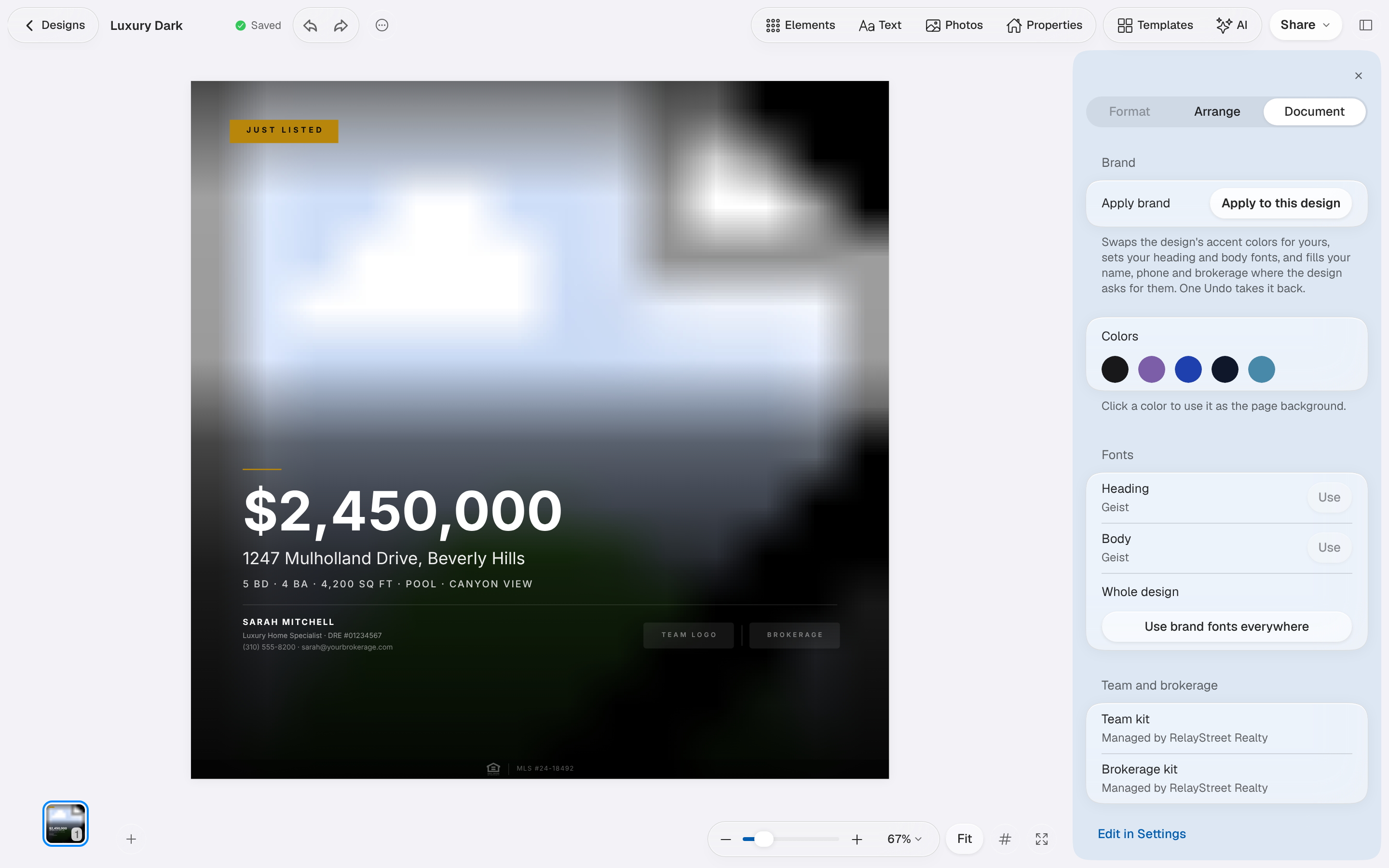
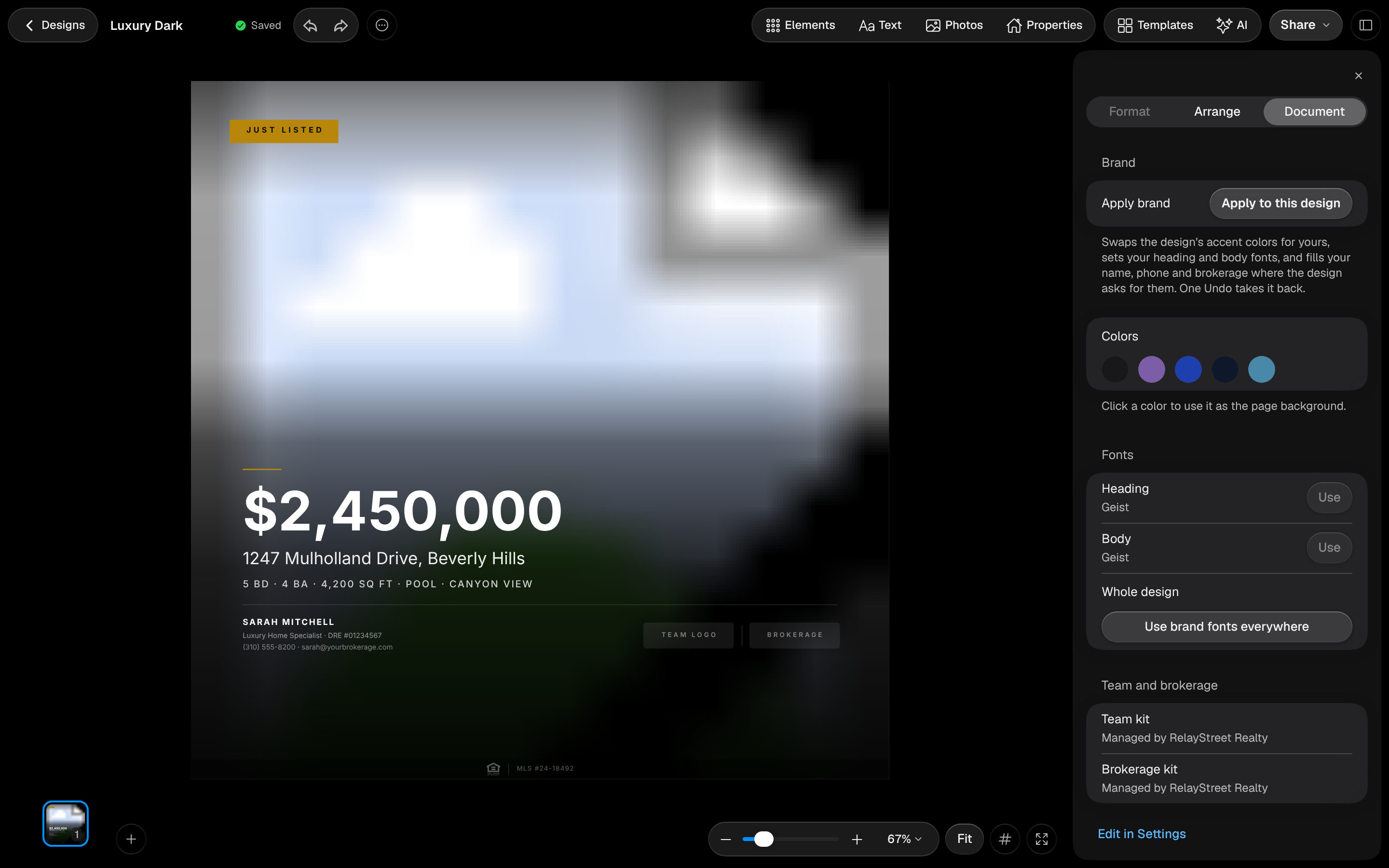
The Design Center editor, with a design open and the property’s details filled in.

Design Center

Flyers, posts and print pieces, filled in from the property

Instagram Reel composerWeb 1440 × 900

Social

Ten composers, a calendar and the numbers for every post

Form editorWeb 1440 × 900

Forms and link pages

Lead forms, an open house kiosk and a link page for your bio

Get in early. Bring your database when you do.

Join the waitlist today. When your invite comes, import your contacts, check them first, and undo it for 30 days.