Dashboard
Start every day with the numbers that matter to you
The Dashboard opens with the widgets your role needs, from new leads to pipeline to closings. Add, remove and reorder them until the board fits how you work.
A starting layout for every built-in role
Live pipeline, tasks, appointments and inbox
A My and Team switch for leaders
On web, iPhone, iPad, Mac and Android
Built for your role
Open to the board your job needs
Agents, ISAs, transaction coordinators, team leads and brokers each start from their own layout. A card you are not allowed to see is simply not drawn.
- Ten starting layouts across the eleven built-in roles
- Agents open on My, brokers and team leads on Team
- Cards follow your real permissions, not just your role
- A custom role starts from the Agent layout
Your day
See what is left today and clear it from one card
Appointments shows what is still on your calendar today. Tasks shows what is due, and you can finish, move or hand off several at once.
- Up to four appointments left today, each opens the day view
- Select tasks, then Mark complete, Reschedule or Assign to
- Reschedule keeps each task's time of day and length
- Inbox counts unread texts, emails and missed calls
Pipeline
Know what is closing and what it is worth
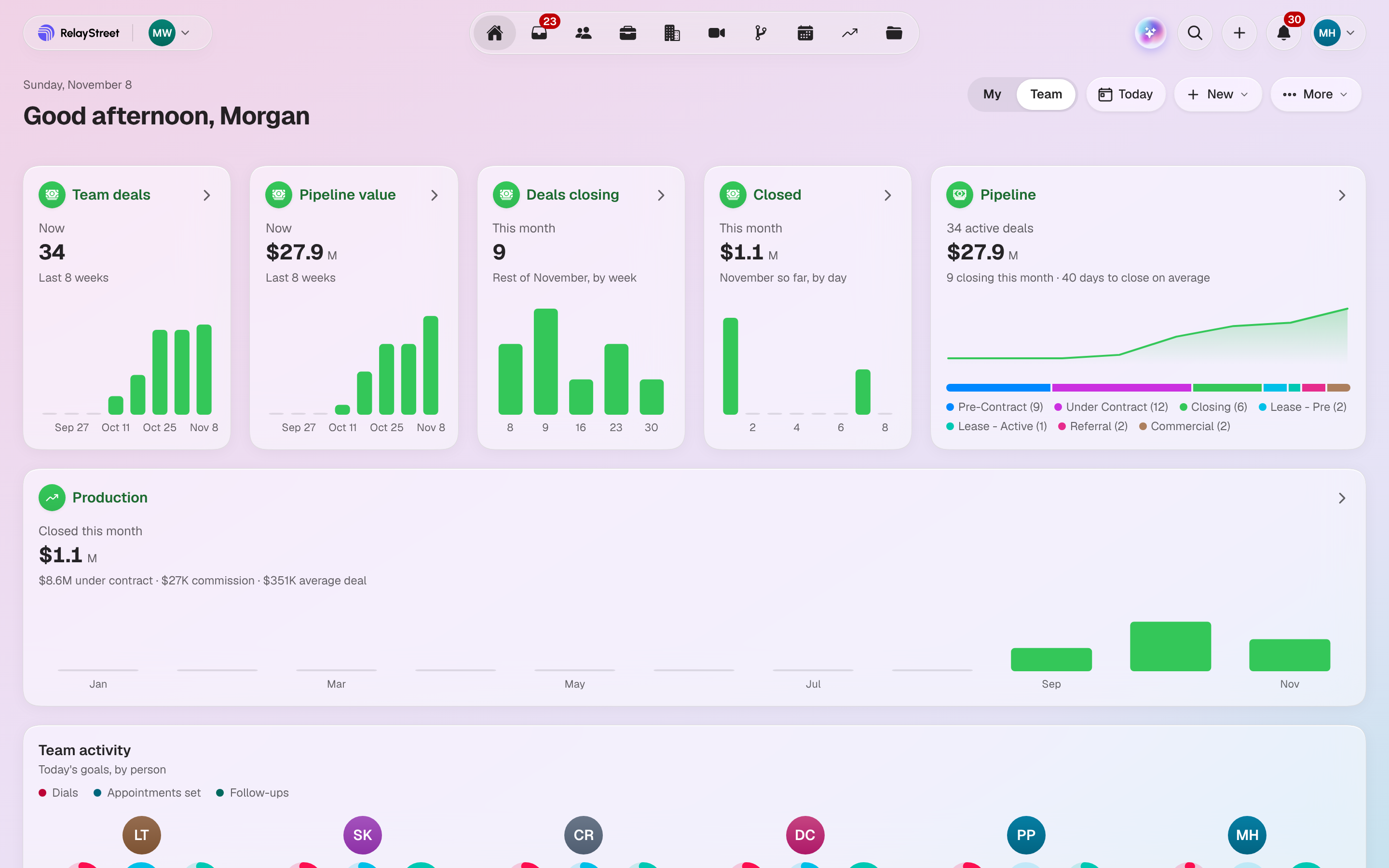
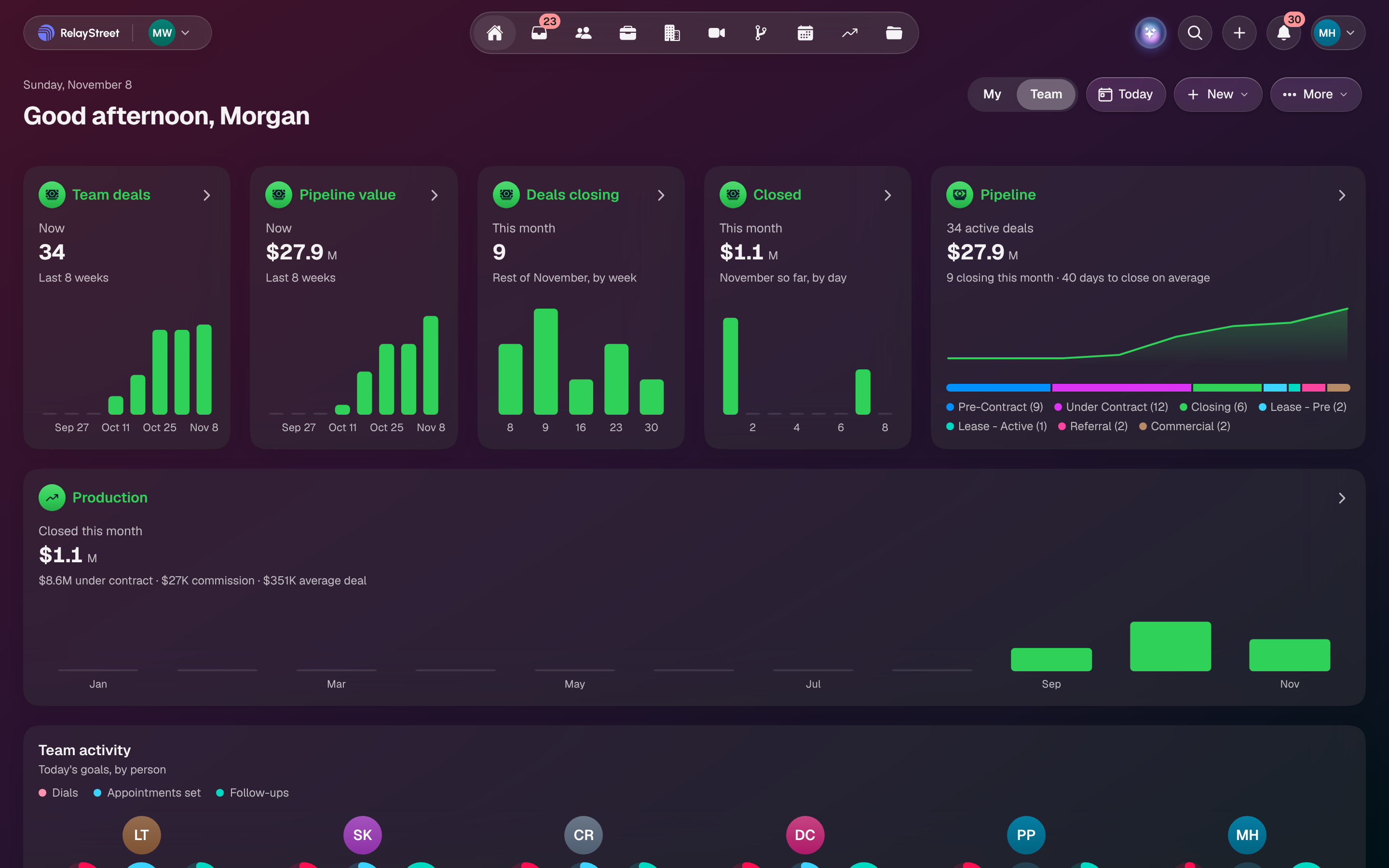
Pipeline, Closing soonest and Commission forecast read your live transactions, so the money on the board is the money in your deals.
- Active deals, total value and what closes this month
- Deals by stage in one stacked bar
- Your next closing with buyer, date and status
- Commission expected over the next 3 months
Leads
Find the leads that need you first
New leads counts this week from Monday. Clear your lists shows your priority Smart Lists, with the ones your admin requires at the top.
- New leads this week, day by day
- Priority Smart Lists, each with its lead count
- Required lists carry a lock and come first
- Lead funnel for the month, Lead sources for the year
Make it yours
Put every card where you want it
Add widgets from the gallery, drag them into order and remove the ones you do not use. Reset to default brings back your role's layout.
- Search the widget gallery by name or category
- Drag to reorder, or move a card with the arrow keys
- An Edit dashboard sheet on phones and tablets
- Reset to default asks before it changes anything
Team view
Flip from your numbers to your team's
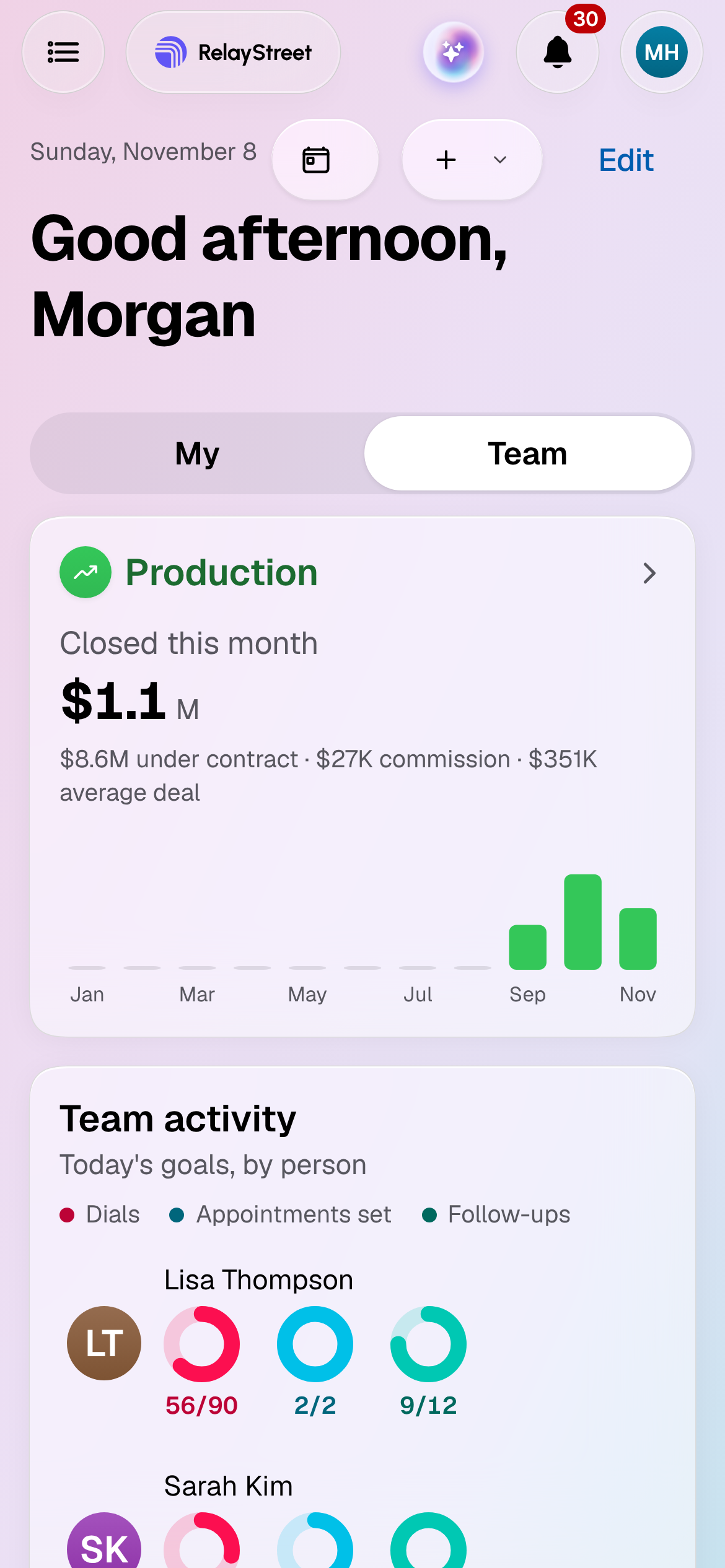
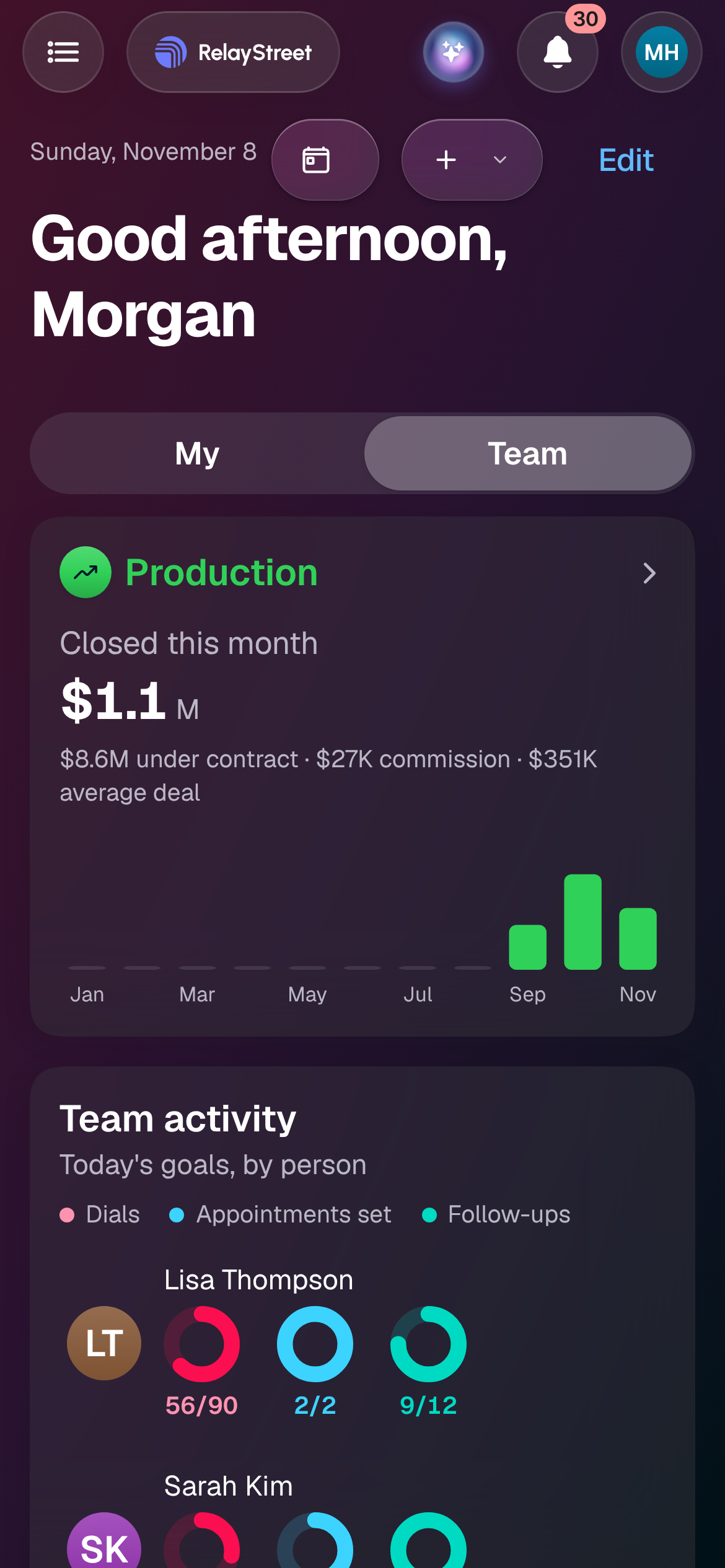
Leaders get a My and Team switch. Team shows what the whole office closed this month, what is under contract and the commission behind it.
- Shown when you hold a team permission and have teammates
- Production: closed this month, under contract, commission
- Team-only cards hide in a one-person workspace
- Mortgage rates from Freddie Mac, 30-year or 15-year
How it works
Dashboard, step by step
Open the Dashboard
On the apps it is the first tab. On the web, open Today and choose Dashboard from More.
Start from your role
The board lays out the widgets your role uses, and draws only the ones your permissions allow.
Edit the board
Add widgets from the gallery, drag them into order and remove what you do not need.
Tap through to work
Every card opens the page behind it, from a Smart List in Contacts to a deal's dates.
Questions
About Dashboard
Which devices have the Dashboard?
The web, iPhone, iPad, Mac and Android. On the apps it is the first tab, labelled Today. On the web, Today is its own page and the Dashboard opens from its More menu.
Can every role change the layout?
Yes. Every role can add, remove, reorder and reset widgets on their own board. No permission is needed to edit the layout.
How fresh are the numbers?
The busiest cards read again every 60 seconds and whenever you come back to the window. Refresh reads every card again on demand.
What do leaders see?
Owners, brokers, team leads, sales managers and admins open on Team. The My and Team switch shows when you hold a team permission and the workspace has more than one active member.
What happens to a card I lose access to?
It stays in your saved layout but is not drawn. If the permission comes back, the card comes back with it.
Can I create records from the Dashboard?
Yes. The New menu offers New contact, New appointment, New task and New transaction, each only when your role may create it.