Schedule
Your whole day on one calendar
Appointments, lead and transaction tasks and block time sit in one calendar, so you plan the day in one place and know how every appointment went.
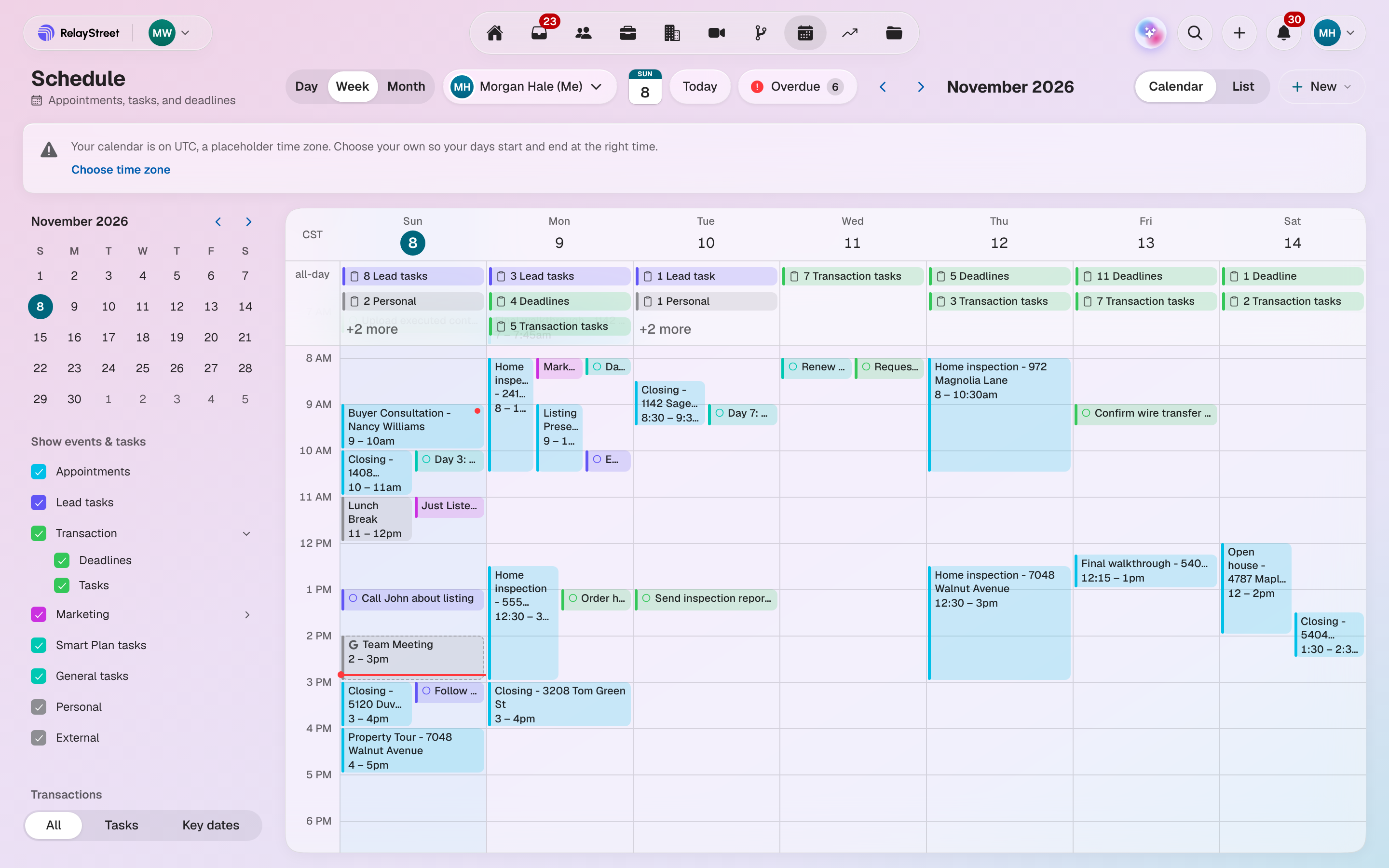
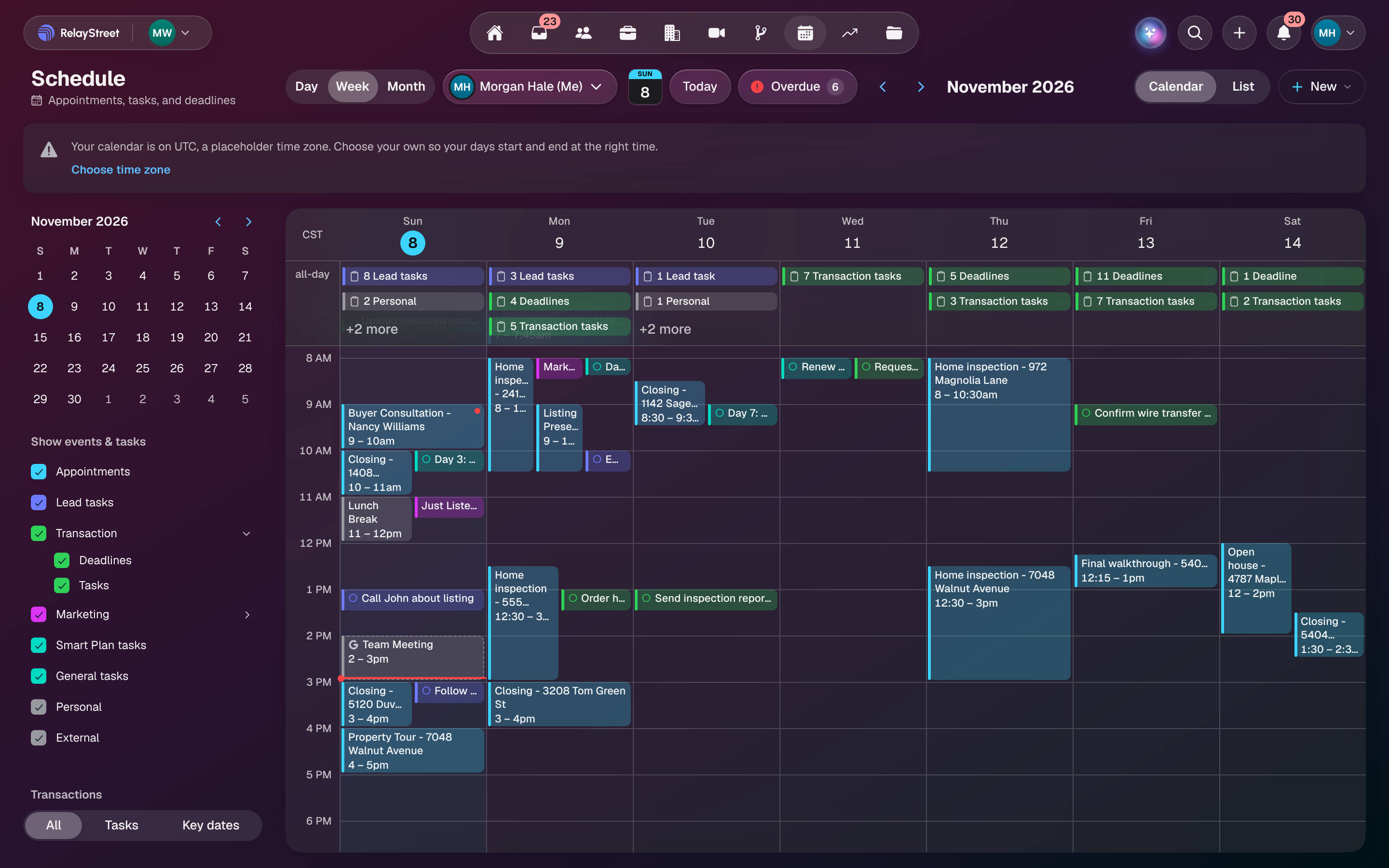
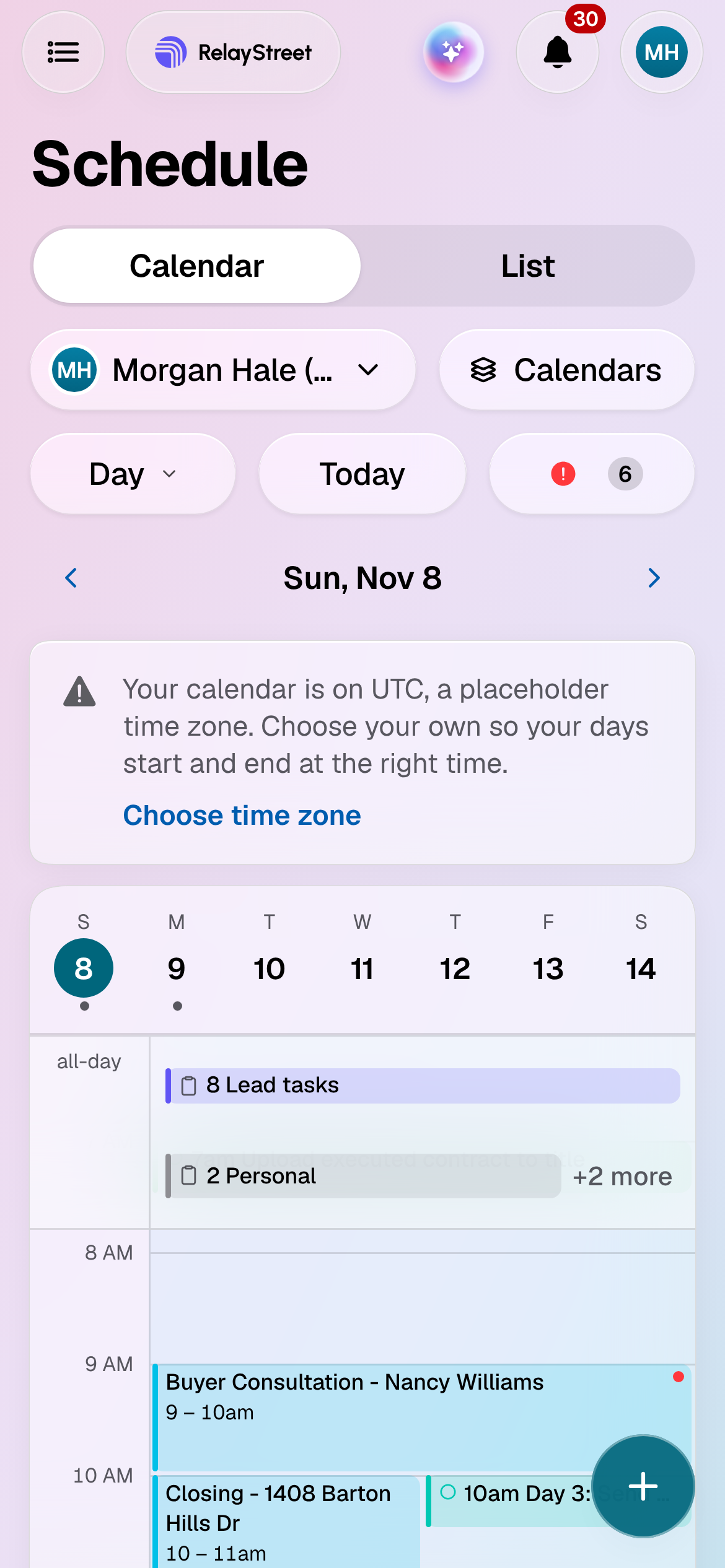
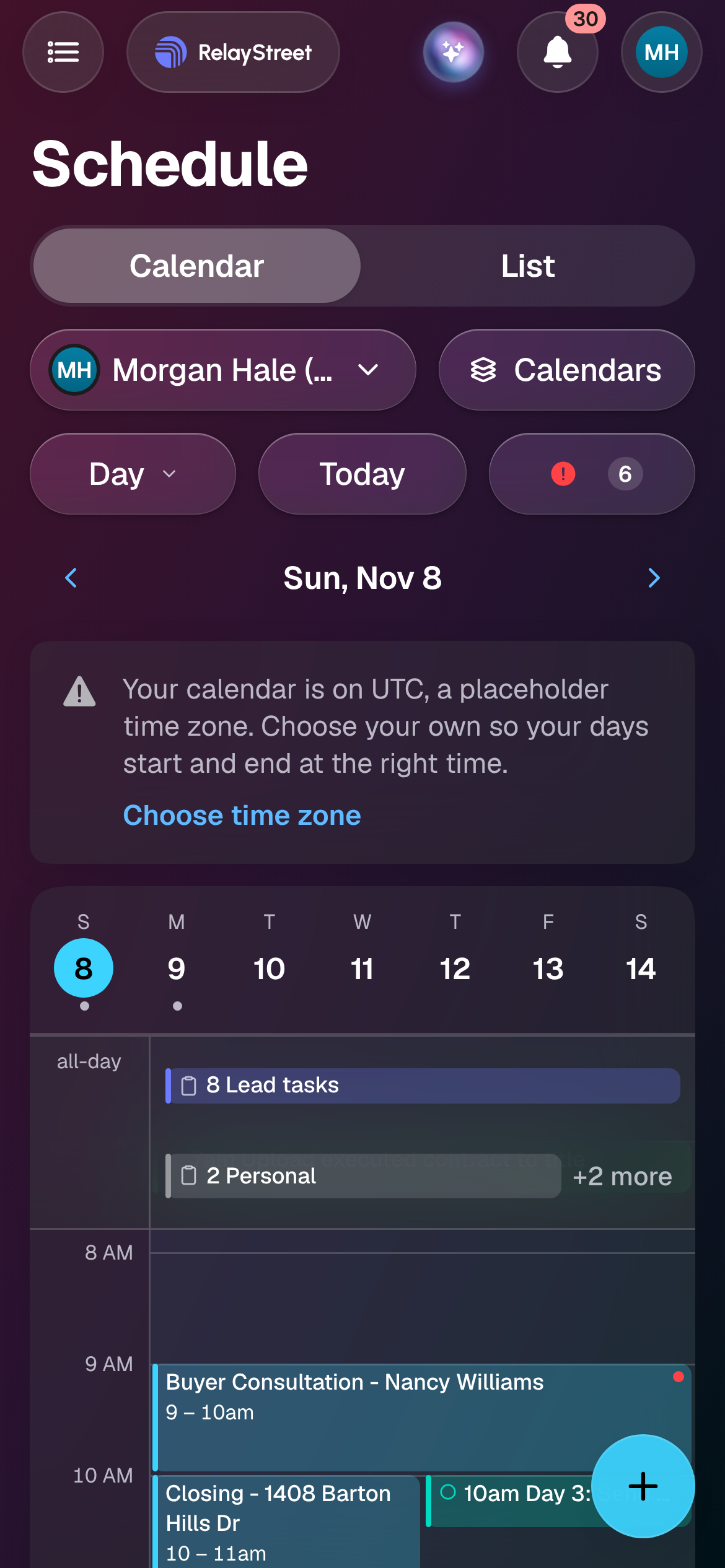
Day, Week, Month, and a List grouped by when
Log an outcome after every appointment
Drag to move or resize, with Undo
On the web, iPhone, iPad, Mac and Android
One calendar
See appointments and tasks together
Every kind of item has its own colour, and the sidebar lets you show or hide each one. Click an empty hour to add something right there.
- Appointments, lead tasks, transaction tasks, general tasks
- Block time for lunch, focus time or a day off
- Show or hide each kind from the sidebar
- Click an empty hour to set an appointment at that time
Appointments
Set an appointment in a few taps
Pick a type and the length fills in. Add the lead, the attendees, a location and notes, and a follow-up task if you want one.
- Types like Buyer Consultation, Property Showing, Open House
- Your own types from the Appointment types page
- Add a follow-up task as you set it
- A new appointment moves the lead to Appointment Set
Outcomes
Know what happened at every appointment
After an appointment, Log outcome records what happened. Appointments that still need one carry an Outcome not logged badge.
- Signed, Interested, Follow-up needed, No-show and more
- A No-show can create a follow-up task and a new time
- Rescheduled sets the new appointment for you
- Signed offers to start a Buyer-side, Seller-side or Dual deal
Rescheduling
Move a showing and tell the client
Drag an appointment to a new time and RelayStreet asks if you want to let the lead know, by text or email, with the new time written for you.
- Drag to move, drag the edge to resize
- Times snap to 15 minutes, and Undo puts it back
- Do Not Contact and text opt-outs are respected
- Outside contact hours, the text waits until they open
for them
About contact hoursYour hours
Days that start and end in your time zone
Set your time zone and working hours, and choose what teammates see on your calendar.
- The grid draws your time zone, not the device's
- Working hours for each day of the week
- Teammates see free or busy, titles, or full details
- Leaders can lay teammates' calendars over their own
Task list
Clear what is overdue first
List mode groups your tasks and appointments into Overdue, Today, Tomorrow, This week and Later. Tick a task to finish it.
- The Overdue button shows the count at the top
- Swipe right to complete on a phone
- Search events and tasks by title, name or place
- Call, text or email from a task in one tap
How it works
Schedule, step by step
Plan your week
Open Week view, block time for what matters, and see your appointments and tasks side by side.
Set the appointment
Pick New, then Appointment. Choose the type, add the lead and a location, and save.
Log the outcome
After the appointment, open it and press Log outcome. Pick what happened and add notes.
Follow up
Let the outcome create the follow-up task or the new time, then work your Overdue and Today list.
Questions
About Schedule
Where can I use the Schedule?
On the web, iPhone, iPad, Mac and Android. Phones open on Day view and desktops open on Week. Calendar settings and the reschedule notice are on the web.
Who can see teammates' calendars?
Owners, Admins, Brokers, Team Leads and Sales Managers can see every calendar. Transaction Coordinators and Virtual Assistants see the team's. Agents, ISAs and Showing Assistants see their own. Each person chooses whether teammates see free or busy, titles, or full details.
What outcomes can I log?
Signed, Interested, Follow-up needed, Completed, Not interested, No-show, Rescheduled and Cancelled, in the order set on your Appointment outcomes page.
What happens when I cancel an appointment?
It stays on the calendar marked cancelled, so it still counts in reporting. Rebook starts a new one with the same type.
Can I undo a move?
Yes. Every move and resize shows a message with Undo. Deletes are permanent, so the app asks first.