Files
Every file, linked to the client it belongs to
Uploads, recordings, designs and attachments live in one library, and each file links to the contacts, properties and deals it belongs to.
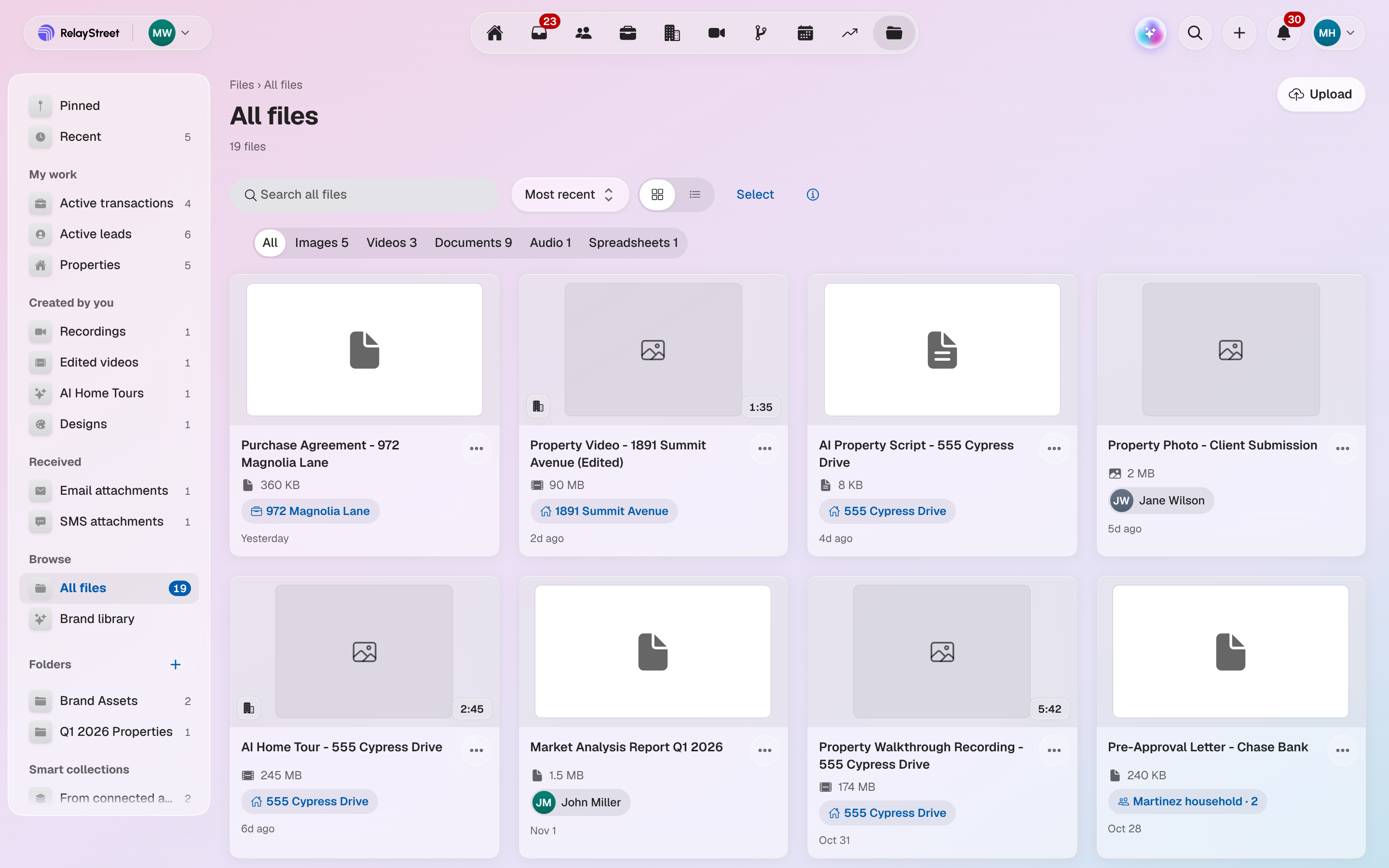
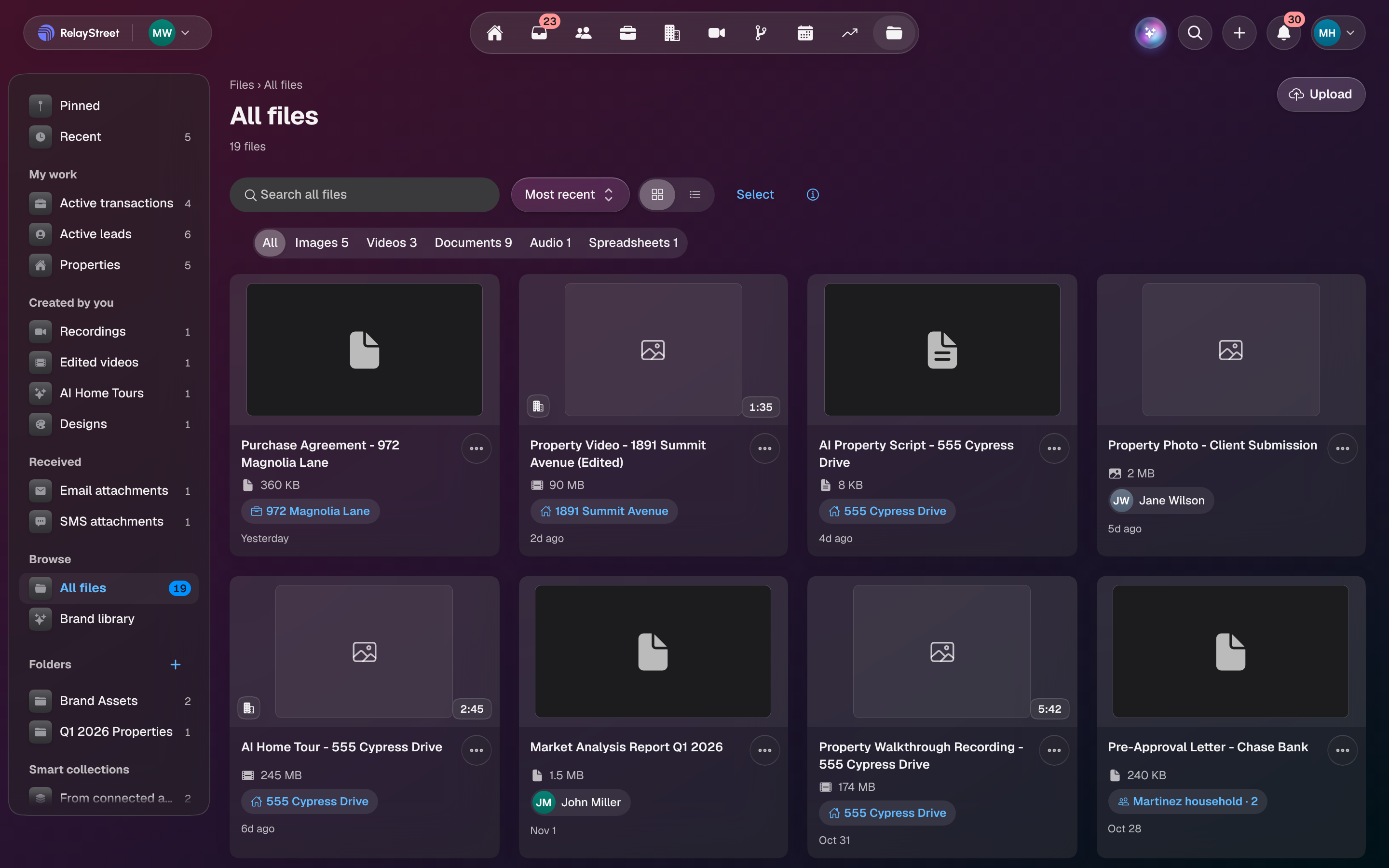
Grid or list, with search across names, tags and links
Link a file to contacts, properties and deals
Folders, tags and pins
Trash with Undo and Restore
One library
Find any file without digging
The sidebar works like Finder: Pinned, Recent, your work, what you created, what you received, and your folders.
- Active transactions, Active leads and Properties rows
- Recordings, AI Home Tours and Designs in one place
- Email and SMS attachments and form uploads
- Search names, tags and linked records
Linked files
Every document tied to the right client
Link a file to a contact, a property, a transaction or a network contact, and it shows on that record too.
- A household shows as one chip, like Smith Family · 2
- A Not linked chip flags files that belong nowhere
- Contact and property records read the same library
- Link several files at once from the bulk bar
Organize
Keep it tidy with folders, tags and pins
Make folders inside folders, add tags, pin what you use most, and move files from their menu or in bulk.
- Folders nest, with names sorted A to Z
- Images, Videos, Documents, Audio and Spreadsheets
- Sort by date, name or size
- Select several files to move, tag or delete at once
Quick Look
See what a file is before you open it
Click a file once to see its info, or double-click a card to open Quick Look. Drag files onto the page to upload them where you are.
- Info panel with links, tags and where it came from
- Rename, pin, tag or move from the file menu
- Arrow keys step through files in Quick Look
- Drop files on a folder to upload them into it
Trash
Delete with a safety net
Deleted files go to Trash, and a single delete offers Undo right away. Restore puts a file back.
- Undo on a single delete
- Restore from Trash any time
- Files stay in Trash until you delete them forever
- Admins see Unlinked files and Storage usage
How it works
Files, step by step
Upload
Press Upload or drop files on the page. Recordings, designs and attachments arrive on their own.
Link
Link each file to the contact, property or deal it belongs to, so it shows on that record too.
Organize
Put files in folders, add tags and pin the ones you reach for most.
Find it again
Search by name, tag or linked record, or open the record and find the file on its card.
Questions
About Files
Where can I use Files?
The full Files page is in the web app, at desktop, tablet and phone widths. The iPhone, iPad and Mac apps let you browse, search and sort your files.
Who can see which files?
Owners, Admins, Brokers, Team Leads and Sales Managers see every file. Agents and Transaction Coordinators see their own uploads, workspace files and files linked to their records. Viewers have no Files access.
Do contact and property documents live here too?
Yes. A contact's Files card, a property's Documents tab and a network contact's Files card show files from this library, with a link to open them in Files.
Where are a deal's contracts?
A deal's contracts and disclosures live on its deal page, in the Documents segment, with folders and required documents.
What happens when I delete a file?
It moves to Trash. A single delete shows Undo, and Restore brings it back. Delete forever removes the file and its links for good.