Contacts
Find your best leads and know what to do next
Your leads, your shared Pond, your Network and their Companies live on one page. Open any lead and the whole history is there, ready for the next call.
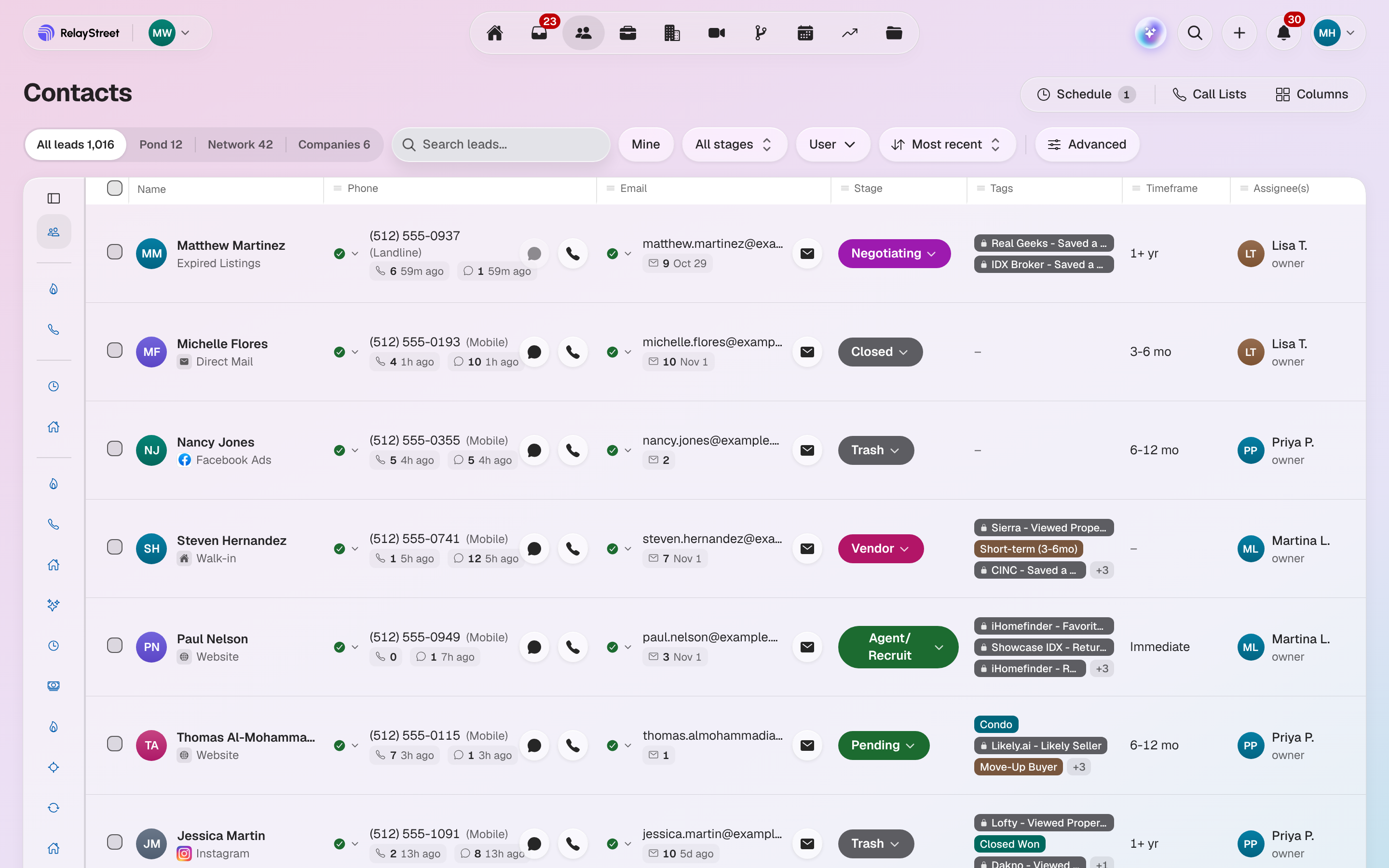
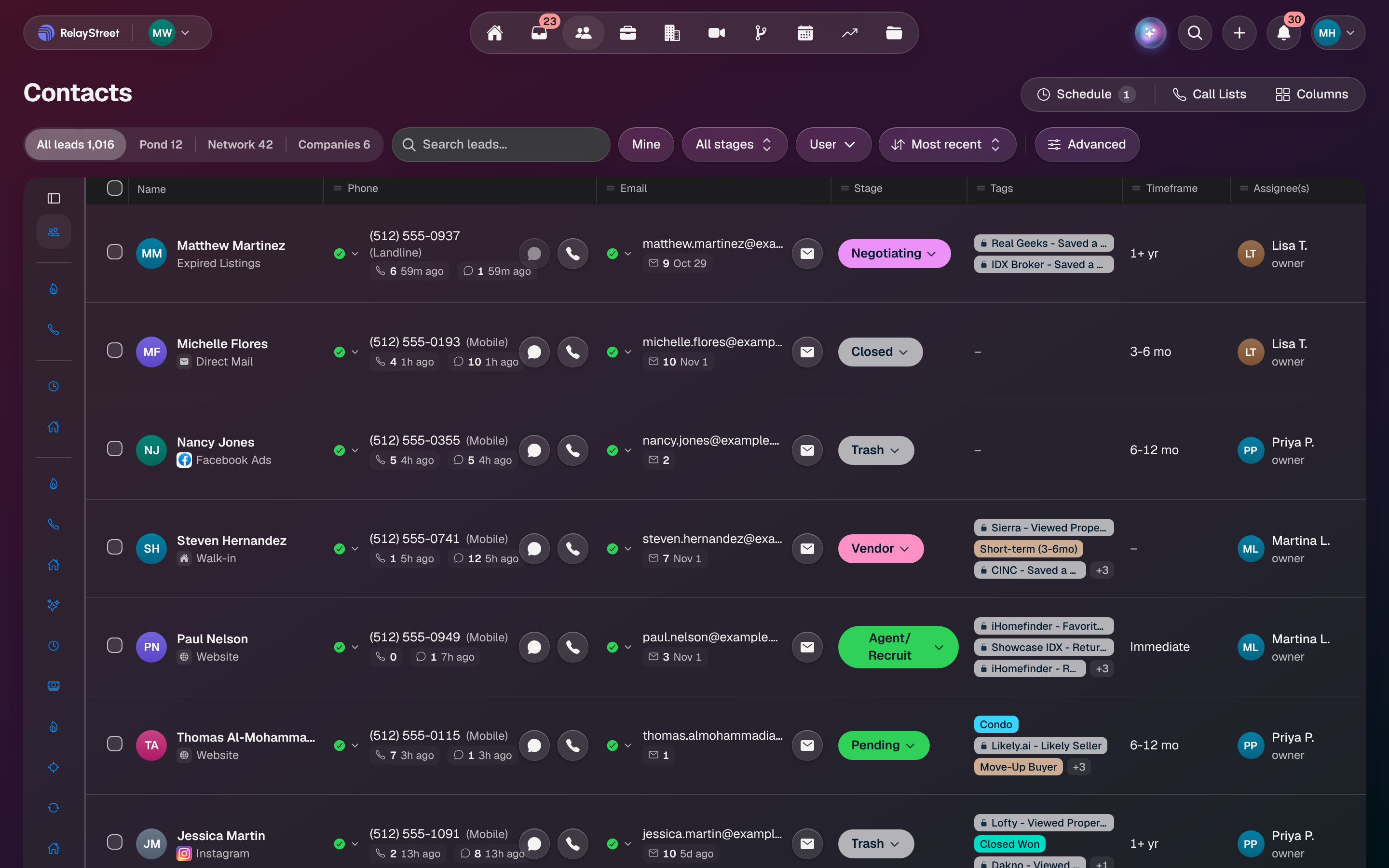
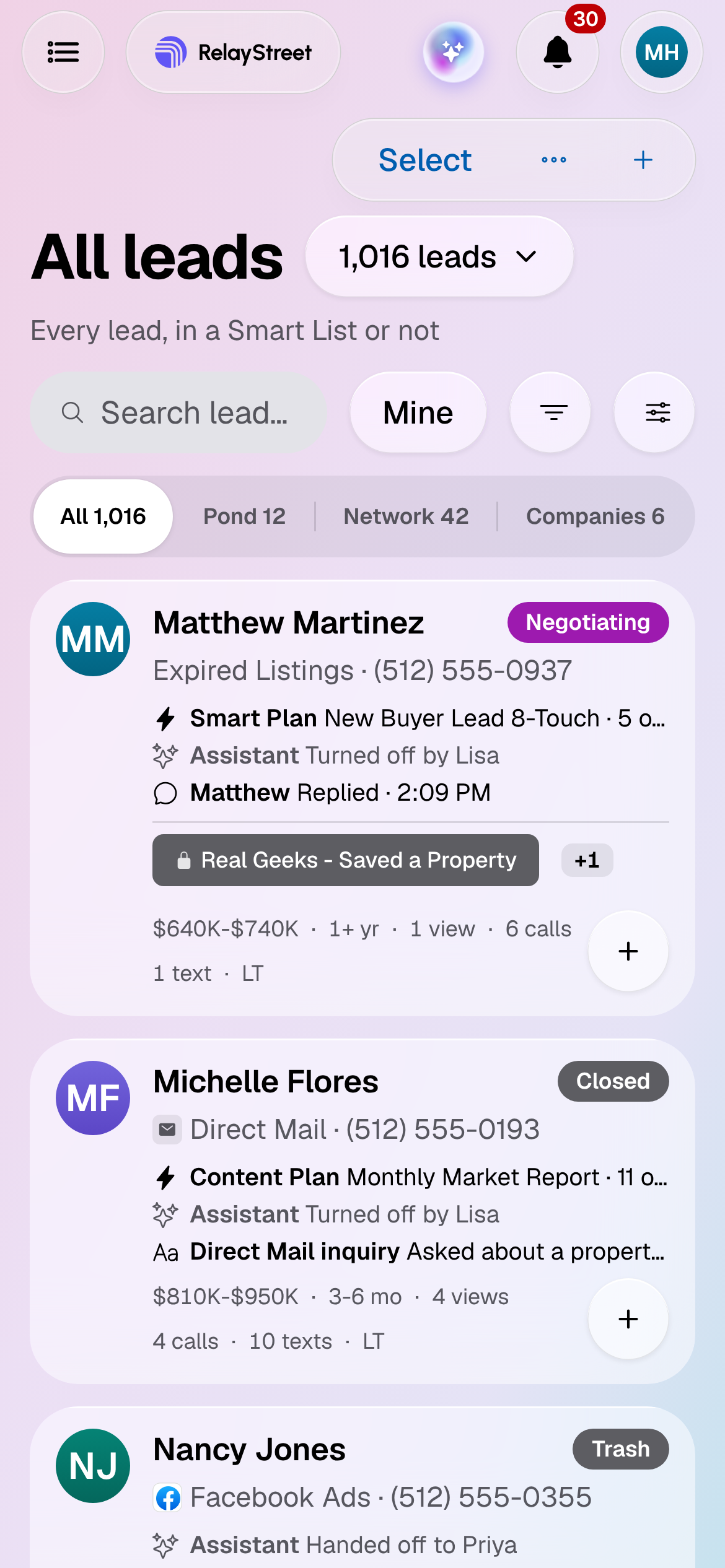
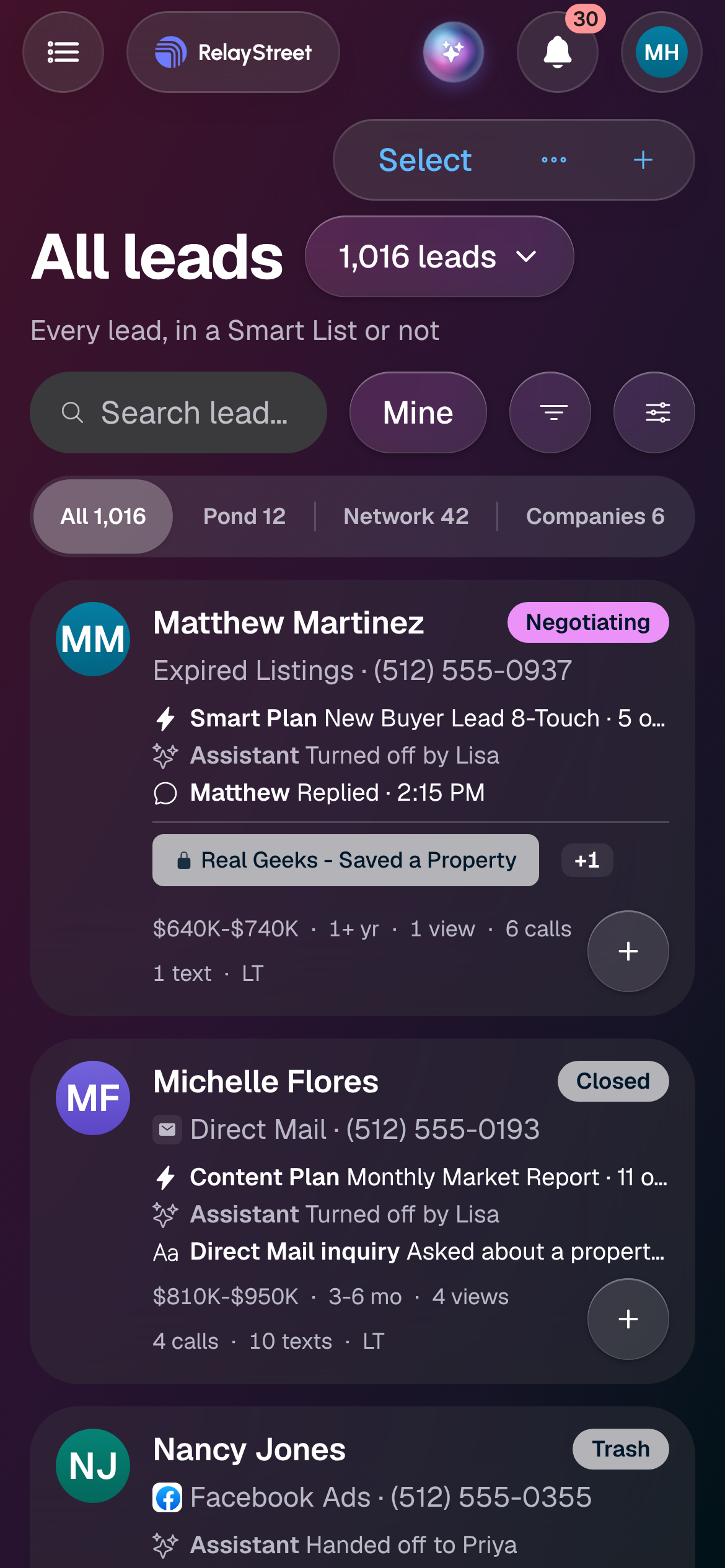
Leads, Pond, Network and Companies on one page
Smart Lists that update as your leads change
Tag, stage, reassign and text many leads at once
On the web, iPhone, iPad, Mac and Android
Find the right lead
Your next best call, a click away
Filter by stage, agent or anything you track, then save it as a Smart List. It keeps itself up to date as leads come and go.
- Sort by Highest score, Last contact or Most recent
- Advanced filters on activity, tasks, source, tags and more
- Save any filter as a Smart List and pin it to the rail
- Every filter lives in the link, so a shared view opens the same
Work in batches
Move a whole group of leads in one step
Select the leads you want, then act on all of them. Every action tells you how many changed and how many could not.
- Add, replace or remove tags on every selected lead
- Update stage or reassign to another agent with a note
- Add them to a call list or start a Smart Plan
- Export the selected leads to a CSV file
Reach many, the right way
Text or email a group without breaking the rules
Send Bulk Text and Send Bulk Email write one message per lead, with merge fields filled for each person. People who cannot be reached are left out, and you see why.
- Leaves out Do Not Contact, opted out and no consent
- Texts never go to landlines or fax numbers
- Texts outside a lead's contact hours are skipped
- Schedule the send and manage it in Scheduled Messages
The whole story
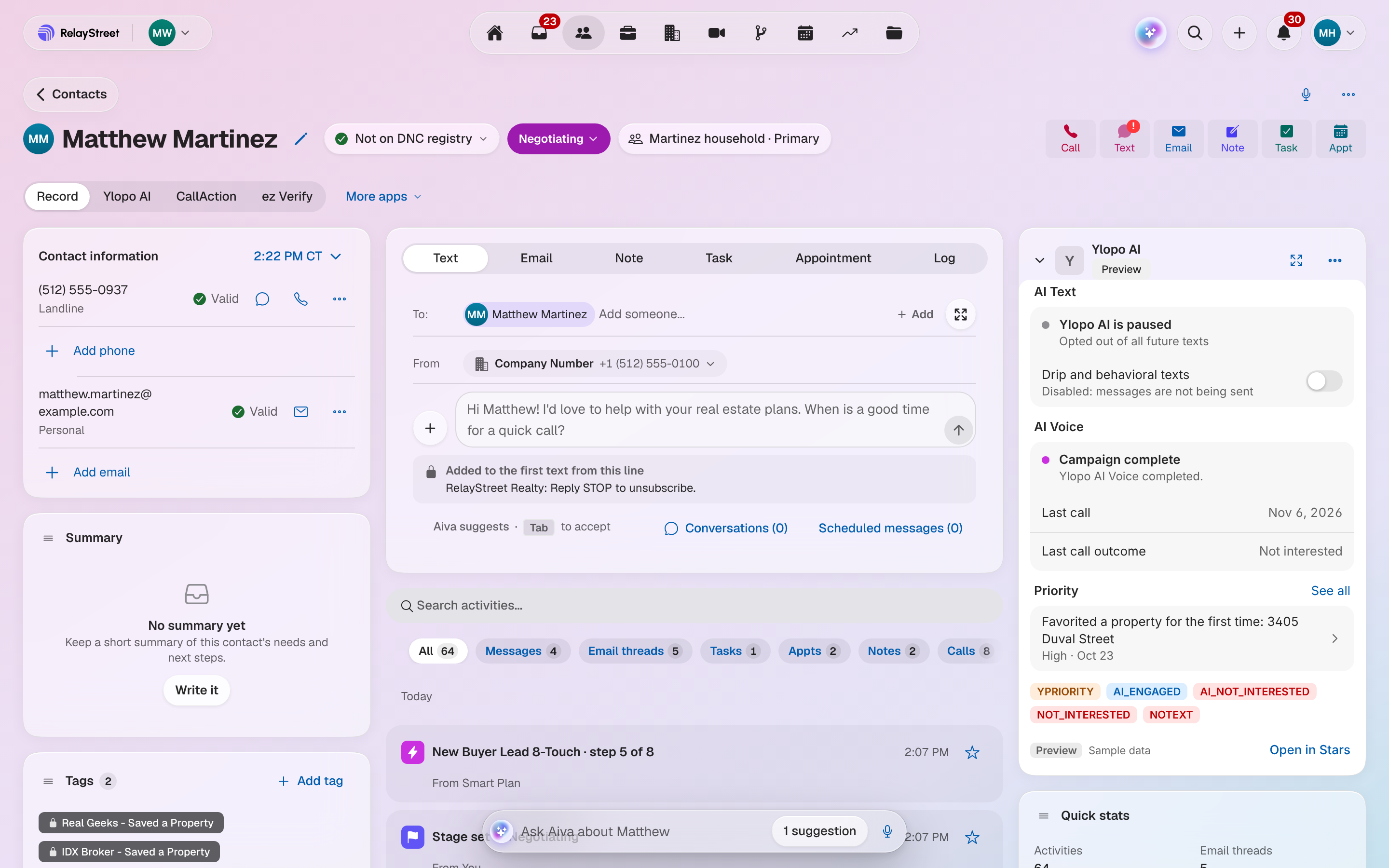
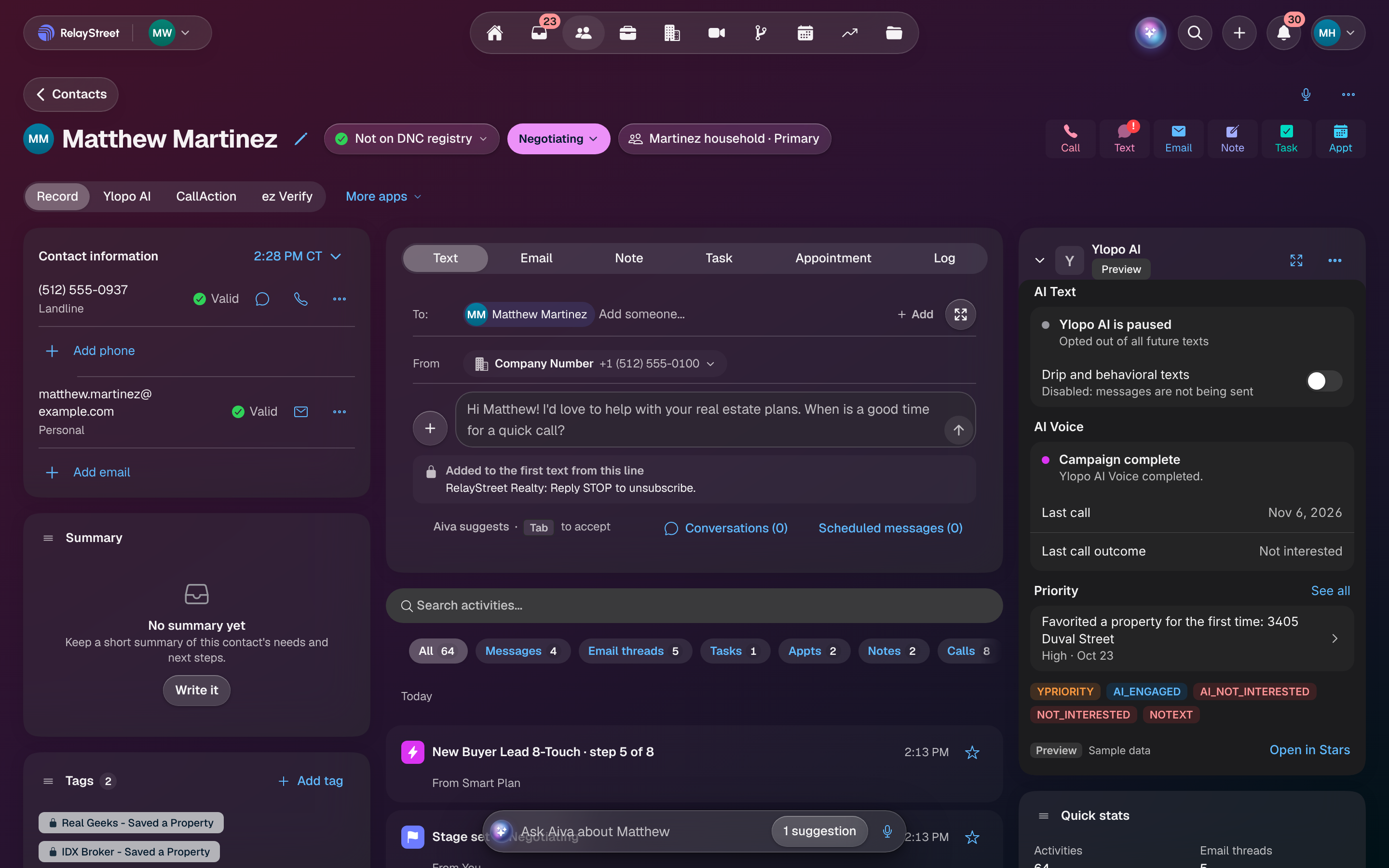
Everything about a lead on one screen
The contact record keeps three columns: Profile, Activity, and Tasks and more. Text, email, add a note, set a task or set an appointment without leaving it.
- Composer tabs for Text, Email, Note, Task, Appt and Log
- One timeline of calls, texts, emails, notes and web visits
- Filter the timeline or search every activity
- Linked properties, files and transactions in their own cards
Reach them safely
Know before you call if you can
Call, Text and Email check one set of rules before anything goes out. A blocked action tells you why and how to fix it.
- DNC status sits beside the name on every record
- Record consent before calling a lead on the registry
- Do Not Contact locks texts, calls and email
- Marking Do Not Contact stops a running Smart Plan
On the go
Your whole book in your pocket
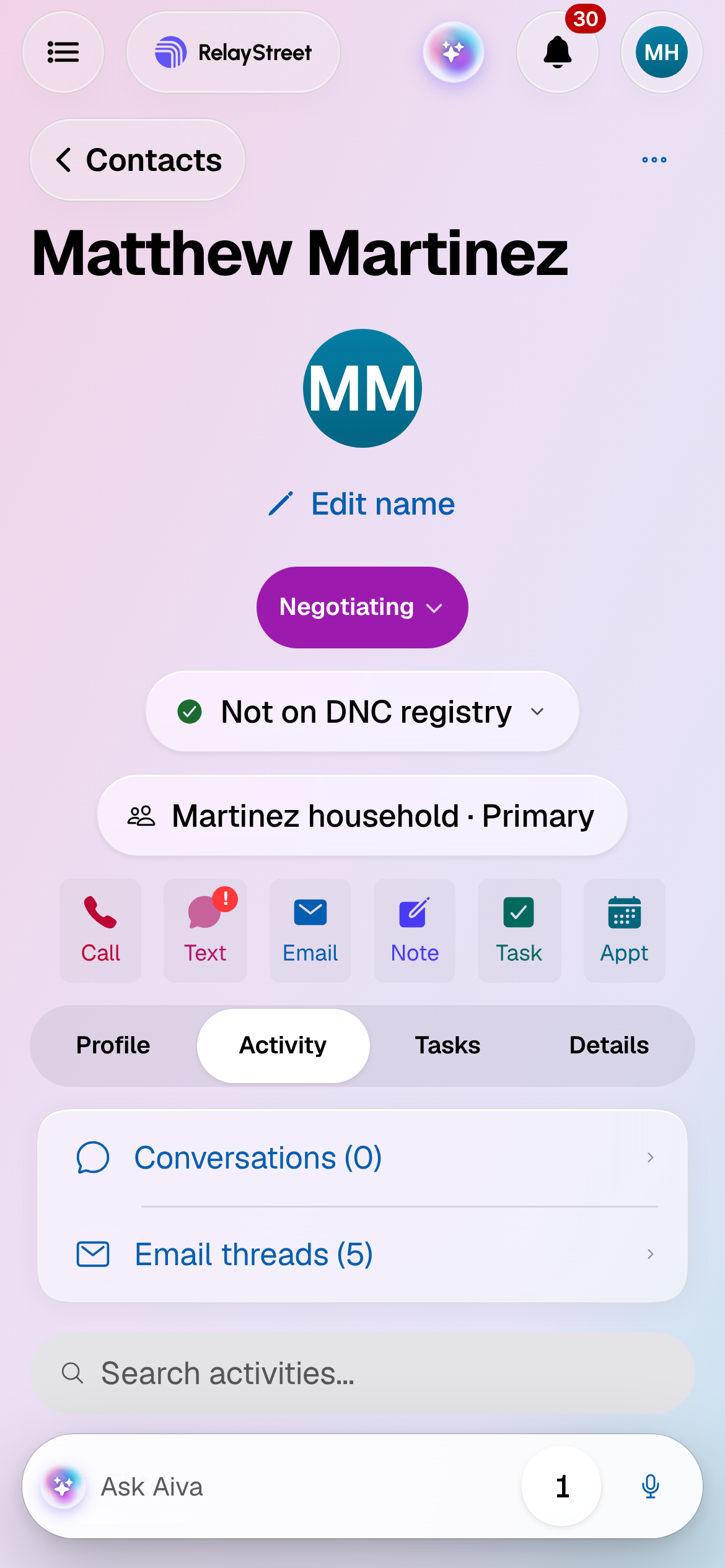
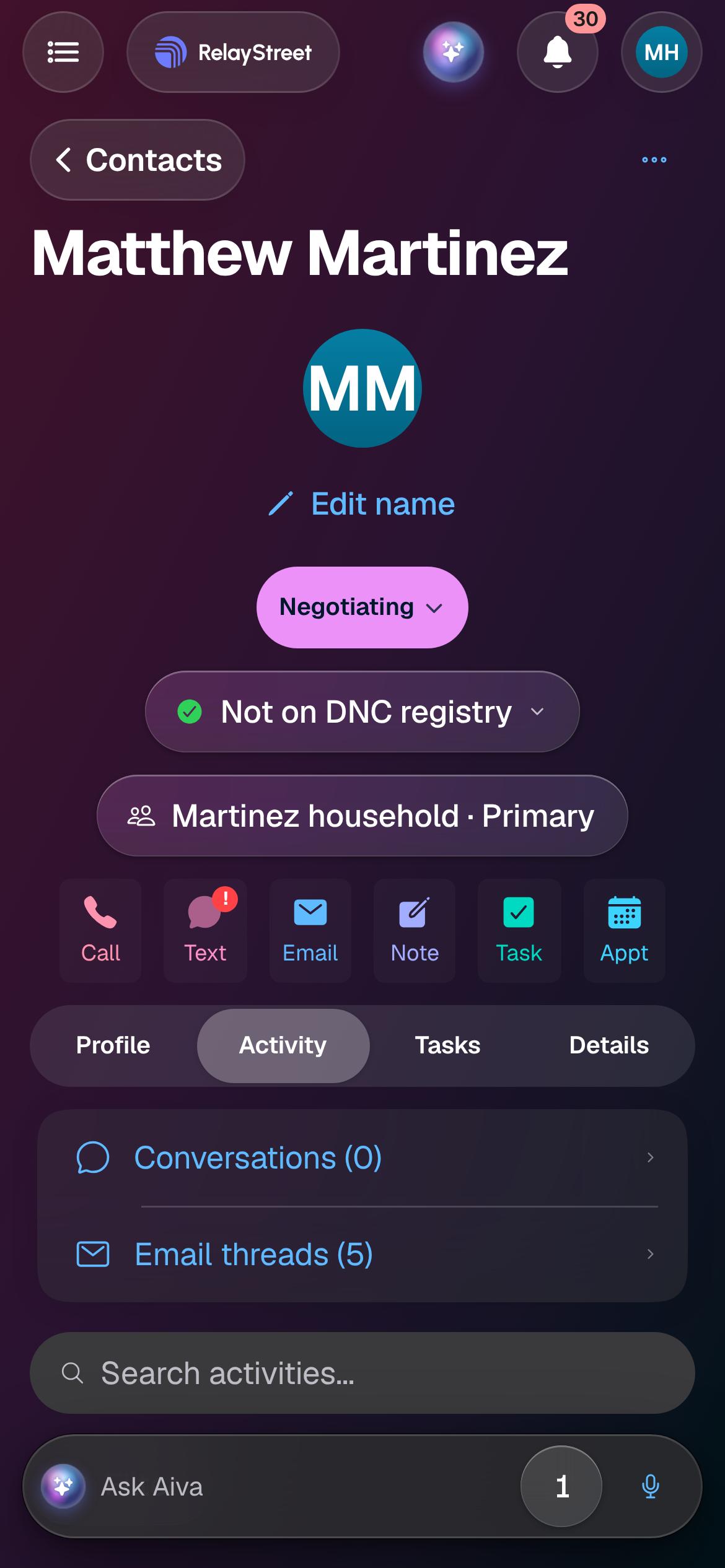
On iPhone the list becomes cards and the record splits into Profile, Activity, Tasks and Details. Call, Text, Email, Note, Task and Appt sit one tap away.
- Swipe through leads as cards with their stage and tags
- Activity opens first, so the last touch is right there
- Select many leads and act on them from your phone
- Add a lead with the same duplicate check as the web
How it works
Contacts, step by step
Add your leads
Use New contact or import a file. RelayStreet checks for a lead with the same email or phone before it saves.
Save the lists you work
Filter by stage, source, tags or activity and save it as a Smart List. Pin the ones you open every day.
Open a lead and reach out
Call, text or email from the record. Each action checks consent and Do Not Contact first.
Set what happens next
Log the call, add a note and set a task or appointment. It all lands on the lead's timeline.
Questions
About Contacts
Who sees which leads?
Owners, Admins, Brokers, Team Leads and Sales Managers see All leads, with a Mine toggle for their own. Agents and ISAs see My Leads, the leads assigned to them.
Does Contacts work on my phone?
Yes. Contacts is on the web, iPhone, iPad, Mac and Android. Phones and tablets show leads as cards, and the desktop shows a table.
Can I choose the columns I see?
Yes. Customize Columns lets you pick and reorder columns, including your workspace's custom fields. Your choice is saved for you.
Who is left out of a bulk text?
Anyone marked Do Not Contact, on the DNC registry without text consent, without SMS consent, opted out, or with a wrong, landline or fax number. Each recipient is checked again right before their batch goes out.
How many leads show on a page?
You can show 10, 25, 50 or 100 leads per page, and change it at any time.
Can I keep partners in Contacts too?
Yes. The Network scope holds lenders, inspectors, title agents, attorneys and contractors, and Companies holds the businesses they work at.